> ## Documentation Index
> Fetch the complete documentation index at: https://docs.dncscrub.com/llms.txt
> Use this file to discover all available pages before exploring further.
# GoHighLevel
> Add DNCScrub compliance scrubbing to your GoHighLevel agency and sub-accounts
[GoHighLevel](https://www.gohighlevel.com) is an all-in-one sales and marketing platform for agencies. The DNCScrub app brings TCPA and Do Not Call compliance scrubbing directly into your GoHighLevel agency and sub-accounts, so you can screen contact phone numbers before you dial, text, or start a campaign.
## Prerequisites
* A GoHighLevel agency account with permission to install marketplace apps
* A DNCScrub account with API access (your **Login ID** / API key and a **Campaign ID**)
## Install the App
DNCScrub installs once at the **agency level** and then works across the sub-accounts you choose. You install it from the GoHighLevel Marketplace.
In your GoHighLevel **agency** account, open the **App Marketplace**.
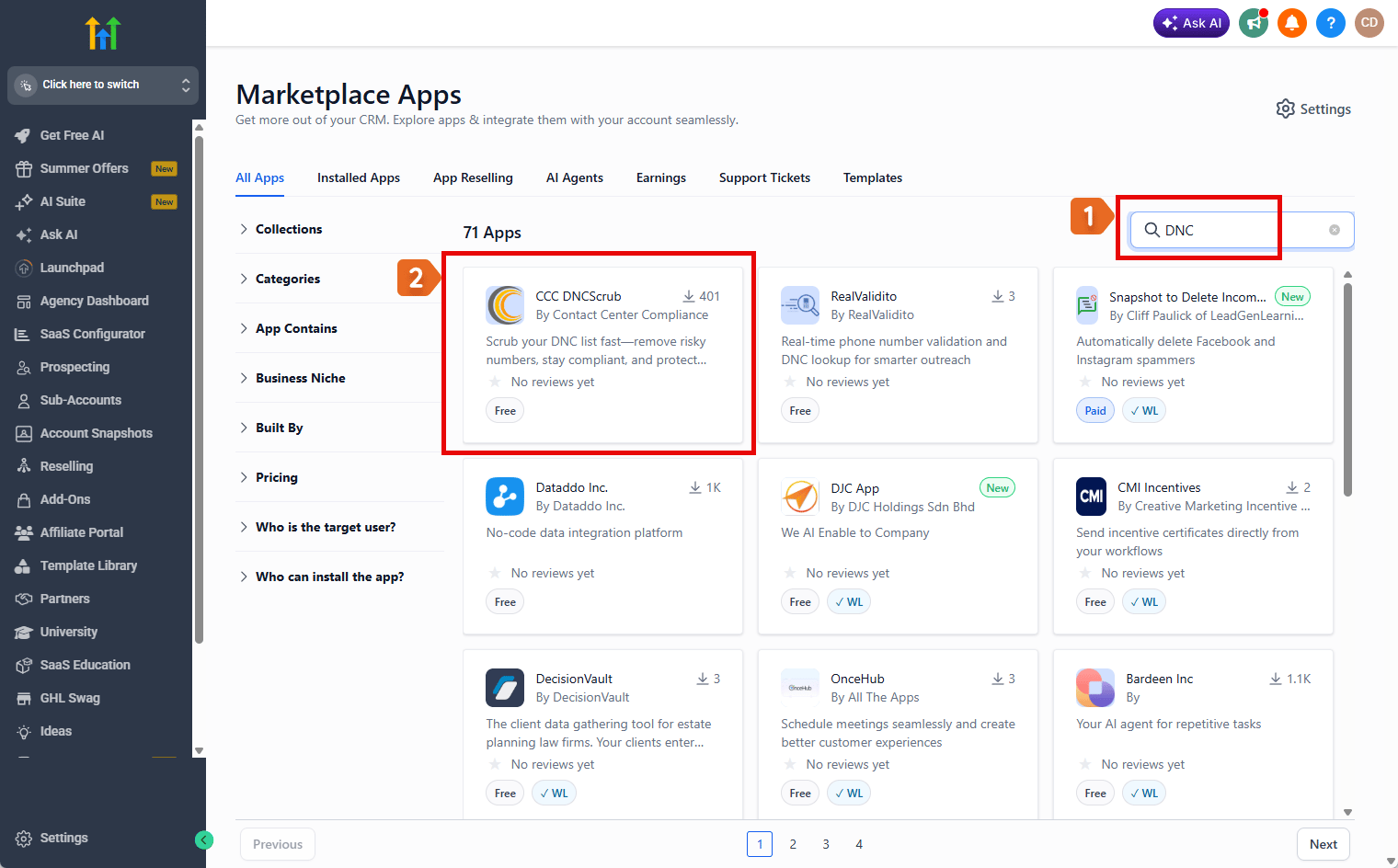
- In the search box (top right), type DNC.
- Select the CCC DNCScrub app by Contact Center Compliance.
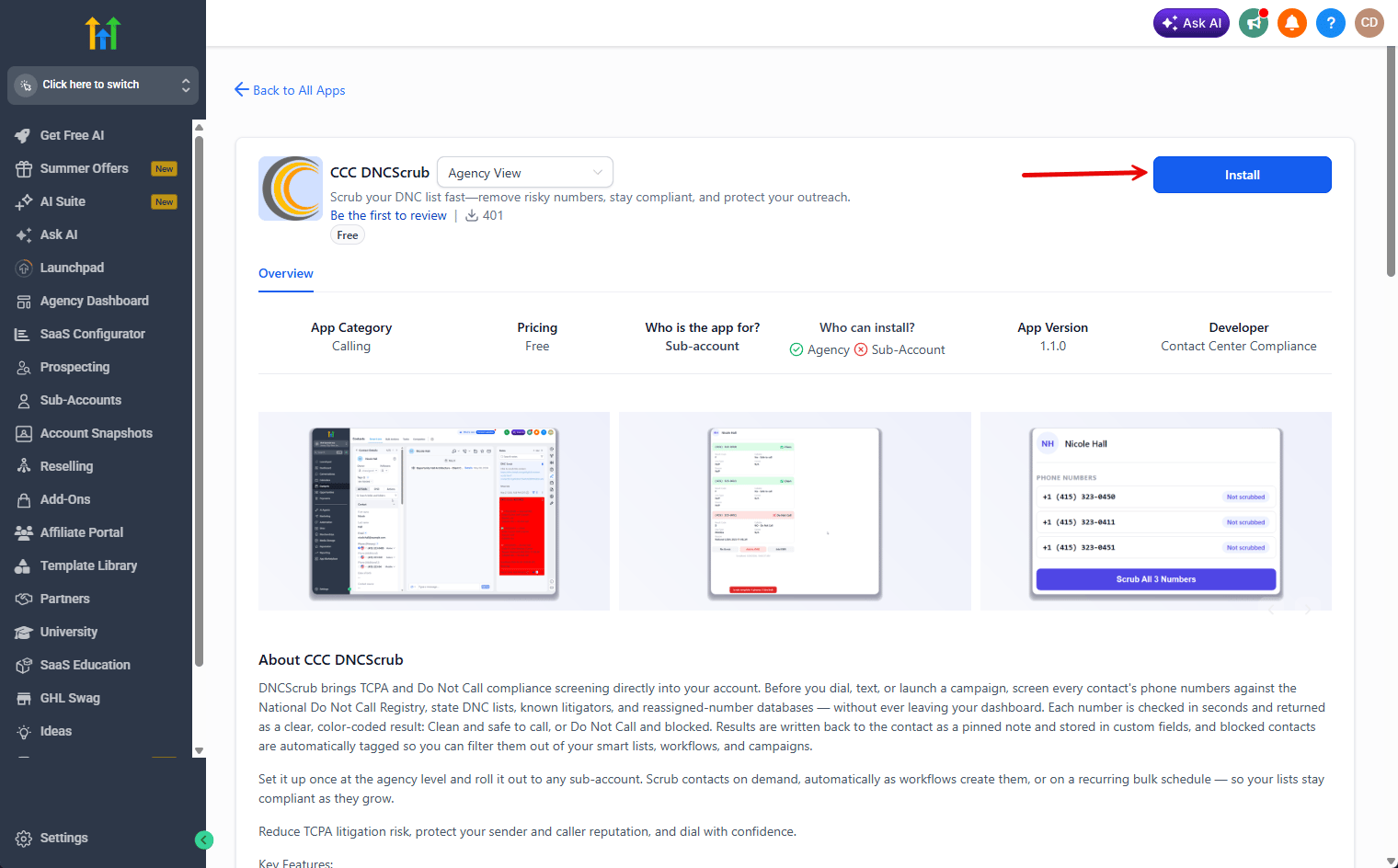
 On the app page, make sure the view is set to **Agency View**, then select **Install**. DNCScrub can only be installed from the agency — not from a sub-account — and you install it once no matter how many sub-accounts you have.
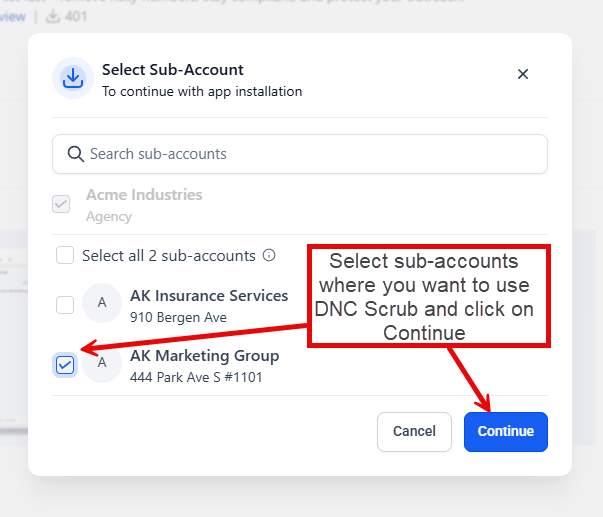
 In the **Select Sub-Account** window, check the sub-accounts (locations) where you want to use DNCScrub, then select **Continue**. You can enable more sub-accounts later, so it is fine to start with just the ones you need.
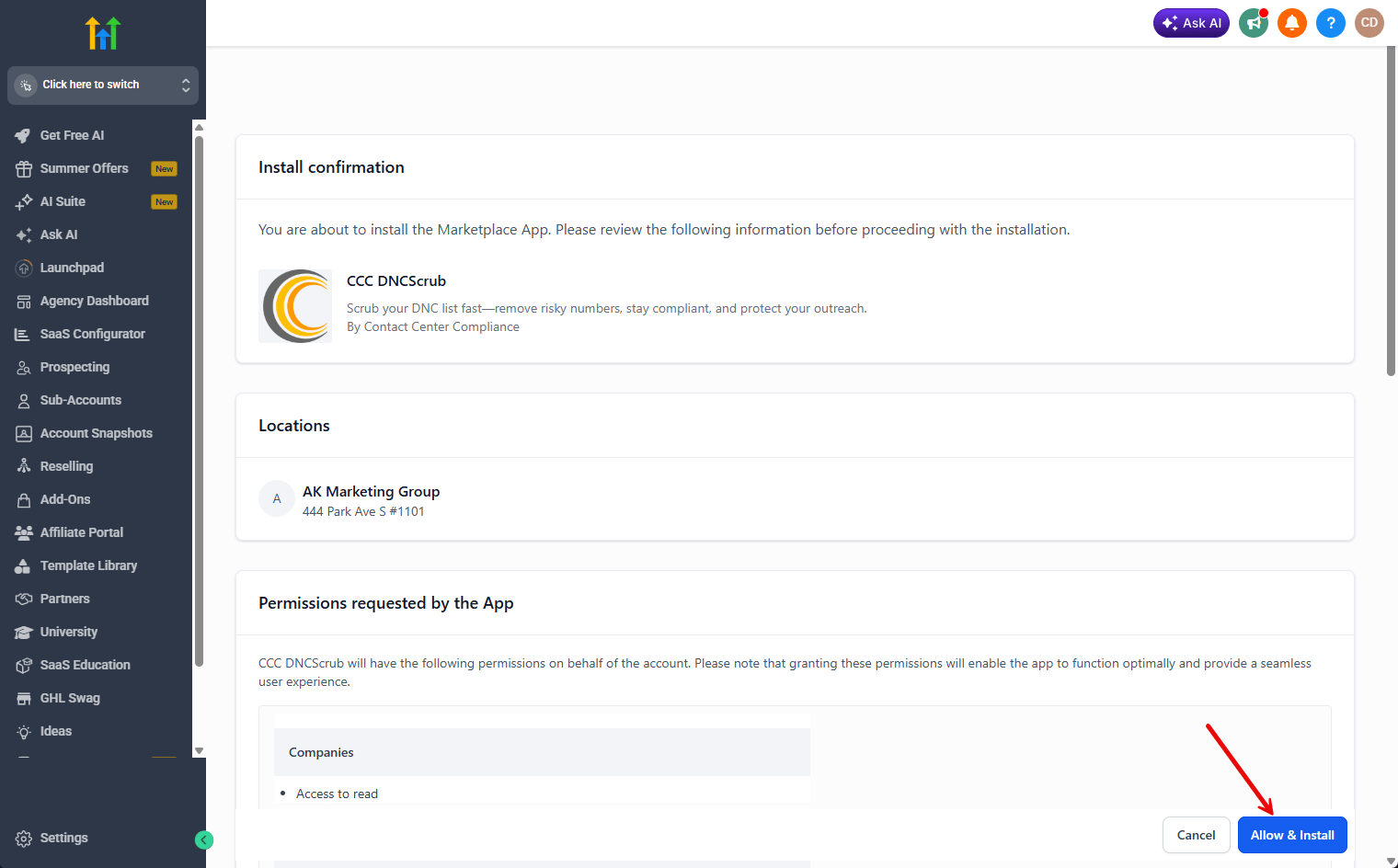
 On the **Install confirmation** page, review the selected location and the permissions the app requests, then select **Allow & Install** to finish installing DNCScrub.
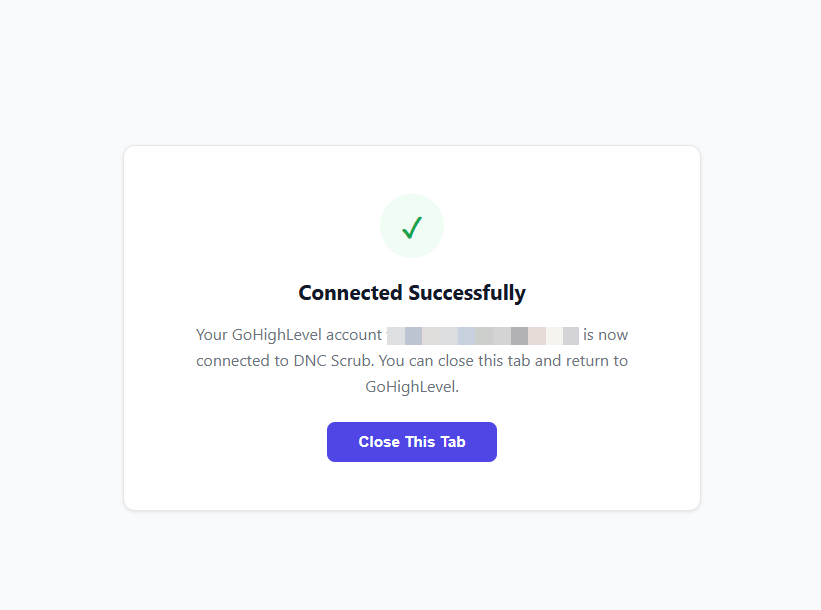
 Once installation is complete, a new tab opens confirming **Connected Successfully** — your GoHighLevel account is now connected to DNC Scrub. Select **Close This Tab** and return to GoHighLevel.
 After installing, GoHighLevel may drop you into a sub-account. To finish setup, switch to **Agency View** — the **DNCScrub Settings** page lives there.
## Set Up Your Agency
Your GoHighLevel connection is created automatically when you install the app. Next, add your DNCScrub API credentials at the **agency level** so scrubbing works across all of your sub-accounts.
Enter these settings from **Agency View**. The **DNCScrub Settings** page only appears at the agency level — not inside a sub-account. Use the account switcher (top-left in GoHighLevel) to select your agency first.
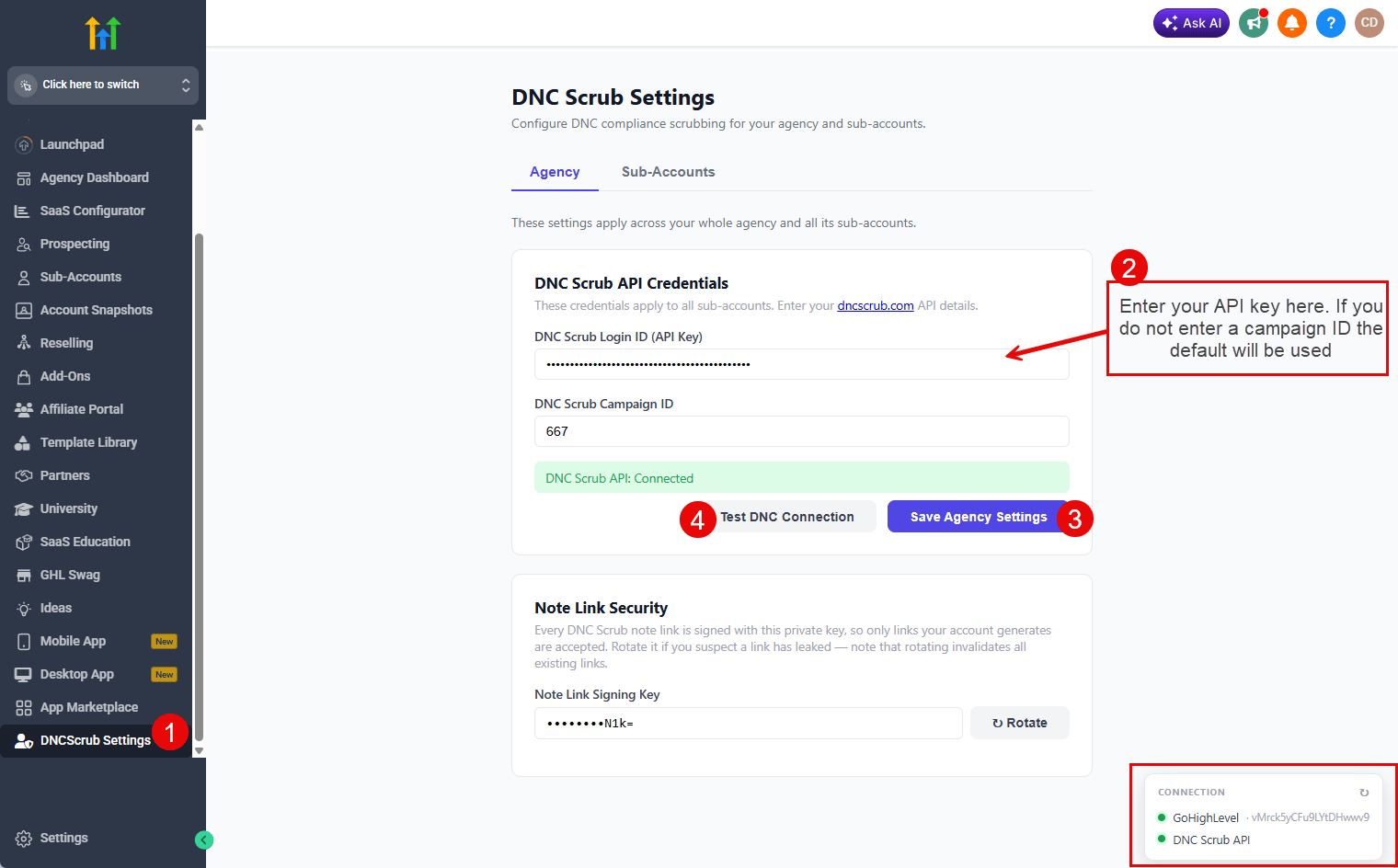
In your GoHighLevel **agency**, select **DNCScrub Settings** in the left sidebar.
On the **Agency** tab, under **DNC Scrub API Credentials**, enter your **DNC Scrub Login ID (API Key)**. You can also add a **DNC Scrub Campaign ID** — if you leave it blank, your default campaign is used.
These agency credentials apply to every sub-account by default.
Select **Save Agency Settings**, then **Test DNC Connection**. A green **DNC Scrub API: Connected** message confirms your credentials work.
In the **Connection** panel at the bottom-right of the screen, you should see two green indicators — **GoHighLevel** and **DNC Scrub API**. Two green lights mean you are fully connected and ready to scrub.
After installing, GoHighLevel may drop you into a sub-account. To finish setup, switch to **Agency View** — the **DNCScrub Settings** page lives there.
## Set Up Your Agency
Your GoHighLevel connection is created automatically when you install the app. Next, add your DNCScrub API credentials at the **agency level** so scrubbing works across all of your sub-accounts.
Enter these settings from **Agency View**. The **DNCScrub Settings** page only appears at the agency level — not inside a sub-account. Use the account switcher (top-left in GoHighLevel) to select your agency first.
In your GoHighLevel **agency**, select **DNCScrub Settings** in the left sidebar.
On the **Agency** tab, under **DNC Scrub API Credentials**, enter your **DNC Scrub Login ID (API Key)**. You can also add a **DNC Scrub Campaign ID** — if you leave it blank, your default campaign is used.
These agency credentials apply to every sub-account by default.
Select **Save Agency Settings**, then **Test DNC Connection**. A green **DNC Scrub API: Connected** message confirms your credentials work.
In the **Connection** panel at the bottom-right of the screen, you should see two green indicators — **GoHighLevel** and **DNC Scrub API**. Two green lights mean you are fully connected and ready to scrub.
 Agency credentials are shared by all sub-accounts. You can override them for an individual sub-account in the next step.
## Configure a Sub-Account
Switch to the **Sub-Accounts** tab and choose a sub-account (location) from the dropdown to configure it on its own. Repeat these steps for each sub-account you want to protect.
Agency credentials are shared by all sub-accounts. You can override them for an individual sub-account in the next step.
## Configure a Sub-Account
Switch to the **Sub-Accounts** tab and choose a sub-account (location) from the dropdown to configure it on its own. Repeat these steps for each sub-account you want to protect.
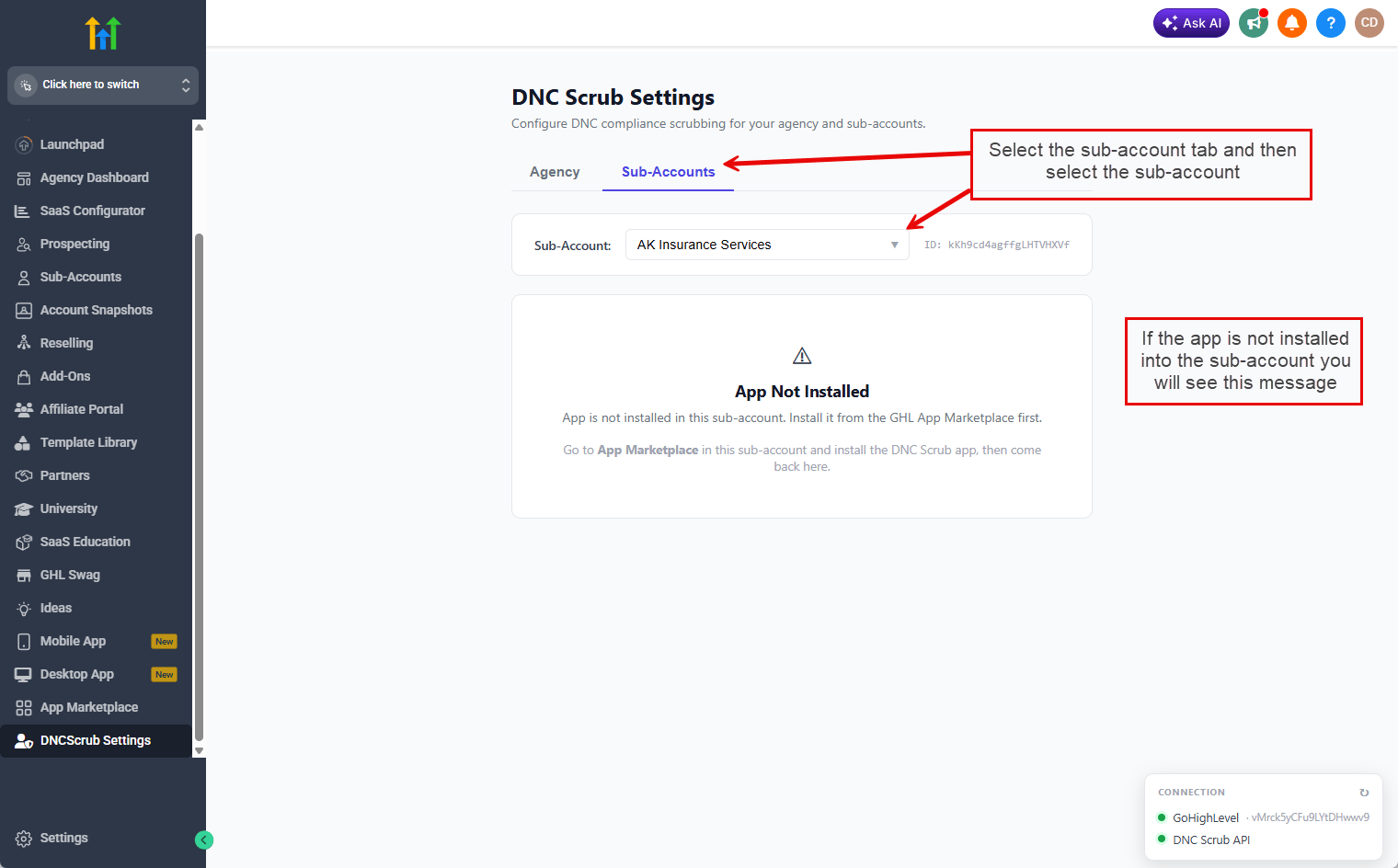 If you see **App Not Installed**, the DNC Scrub app has not been added to that sub-account yet. Open the **App Marketplace** inside that sub-account, install the DNC Scrub app, then return here and select it again.
### Credential override
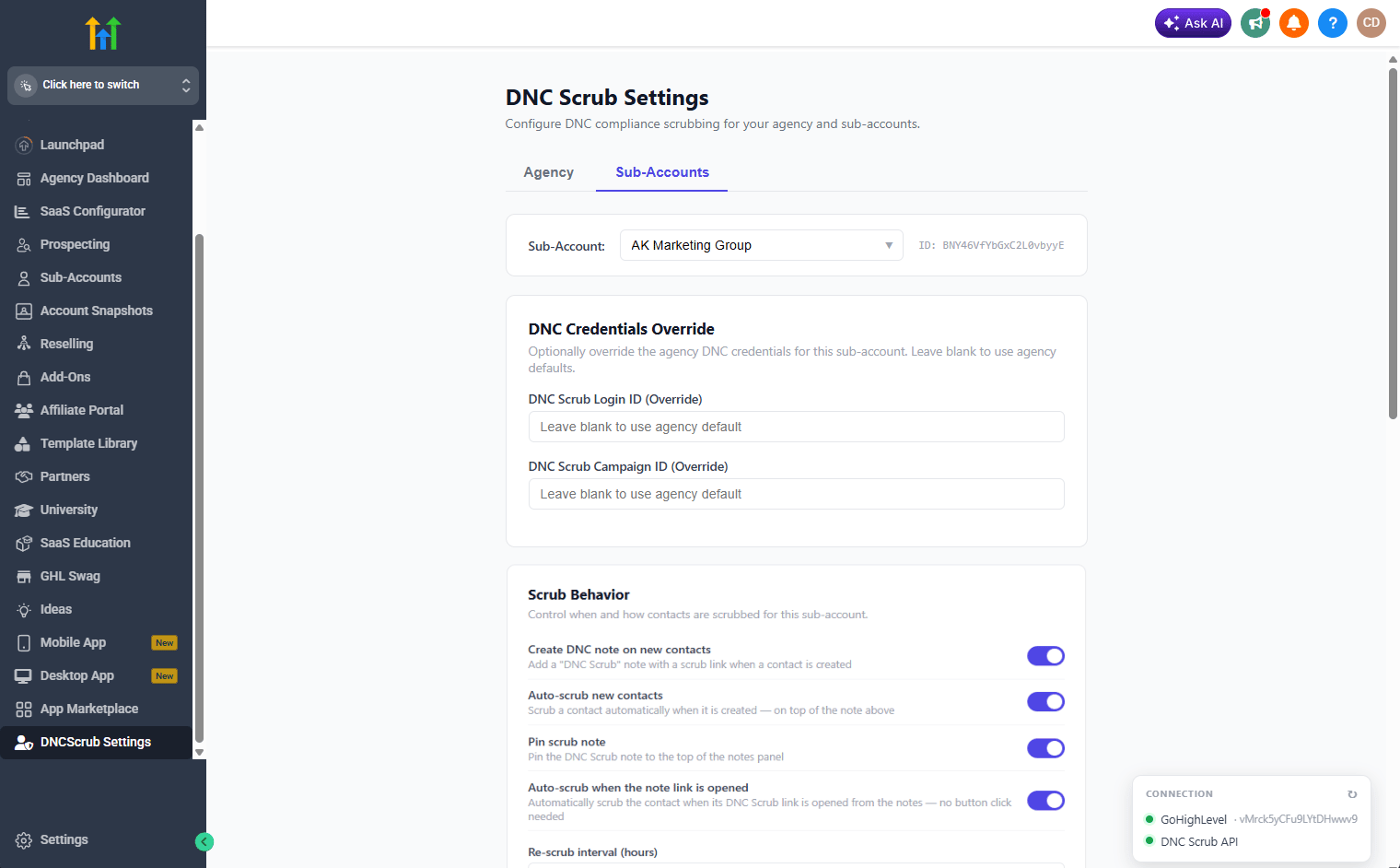
Use **DNC Credentials Override** to point a single sub-account at a different DNCScrub Login ID or Campaign ID. Leave these fields blank to inherit the agency defaults.
### Scrub behavior
The **Scrub Behavior** section controls when and how contacts are scrubbed for the selected sub-account:
| Setting | What it does |
| ------------------------------------------- | --------------------------------------------------------------------------------------------------------- |
| **Create DNC note on new contacts** | Add a *DNC Scrub* note with a scrub link when a contact is created |
| **Auto-scrub new contacts** | Scrub a contact automatically when it is created — on top of the note |
| **Pin scrub note** | Pin the *DNC Scrub* note to the top of the contact's notes panel |
| **Auto-scrub when the note link is opened** | Automatically scrub the contact when its DNC Scrub link is opened from the notes — no button click needed |
| **Re-scrub interval (hours)** | During a bulk scrub, skip contacts already scrubbed within this many hours (default `24`) |
If you see **App Not Installed**, the DNC Scrub app has not been added to that sub-account yet. Open the **App Marketplace** inside that sub-account, install the DNC Scrub app, then return here and select it again.
### Credential override
Use **DNC Credentials Override** to point a single sub-account at a different DNCScrub Login ID or Campaign ID. Leave these fields blank to inherit the agency defaults.
### Scrub behavior
The **Scrub Behavior** section controls when and how contacts are scrubbed for the selected sub-account:
| Setting | What it does |
| ------------------------------------------- | --------------------------------------------------------------------------------------------------------- |
| **Create DNC note on new contacts** | Add a *DNC Scrub* note with a scrub link when a contact is created |
| **Auto-scrub new contacts** | Scrub a contact automatically when it is created — on top of the note |
| **Pin scrub note** | Pin the *DNC Scrub* note to the top of the contact's notes panel |
| **Auto-scrub when the note link is opened** | Automatically scrub the contact when its DNC Scrub link is opened from the notes — no button click needed |
| **Re-scrub interval (hours)** | During a bulk scrub, skip contacts already scrubbed within this many hours (default `24`) |
 ### Note appearance
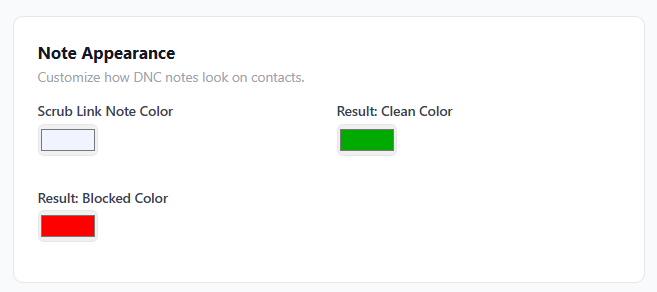
Under **Note Appearance**, set the colors DNC Scrub uses for the notes it adds to contacts:
* **Scrub Link Note Color** — the pinned note that holds the scrub link
* **Result: Clean Color** — the result note when a number is safe to call
* **Result: Blocked Color** — the result note when a number is blocked
### Note appearance
Under **Note Appearance**, set the colors DNC Scrub uses for the notes it adds to contacts:
* **Scrub Link Note Color** — the pinned note that holds the scrub link
* **Result: Clean Color** — the result note when a number is safe to call
* **Result: Blocked Color** — the result note when a number is blocked
 ### Contact tags
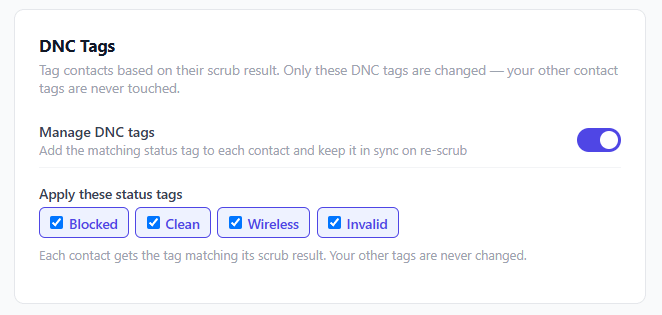
Turn on **Manage DNC tags** to have DNC Scrub tag each contact with its scrub result. The tag is kept in sync on every re-scrub, so a contact always carries the tag that matches its latest result — handy for building smart lists and triggering workflows.
Choose which tags to apply under **Apply these status tags**. Each scrub result maps to a single status tag:
| Status tag | Applied when the number is |
| ---------------- | ----------------------------------------------------- |
| **DNC-Blocked** | Blocked — Do Not Call |
| **DNC-Clean** | Clean and safe to call (includes exemptions and EBRs) |
| **DNC-Wireless** | A wireless number |
| **DNC-Invalid** | Invalid or unusable |
A contact only ever carries one of these status tags at a time. When a re-scrub changes the result, DNC Scrub removes the old status tag and adds the new one.
DNC Scrub only ever changes the DNC status tags you enable here. Any other tags on the contact — yours or from other apps — are never touched.
### Contact tags
Turn on **Manage DNC tags** to have DNC Scrub tag each contact with its scrub result. The tag is kept in sync on every re-scrub, so a contact always carries the tag that matches its latest result — handy for building smart lists and triggering workflows.
Choose which tags to apply under **Apply these status tags**. Each scrub result maps to a single status tag:
| Status tag | Applied when the number is |
| ---------------- | ----------------------------------------------------- |
| **DNC-Blocked** | Blocked — Do Not Call |
| **DNC-Clean** | Clean and safe to call (includes exemptions and EBRs) |
| **DNC-Wireless** | A wireless number |
| **DNC-Invalid** | Invalid or unusable |
A contact only ever carries one of these status tags at a time. When a re-scrub changes the result, DNC Scrub removes the old status tag and adds the new one.
DNC Scrub only ever changes the DNC status tags you enable here. Any other tags on the contact — yours or from other apps — are never touched.
 ### Bulk scrub schedule
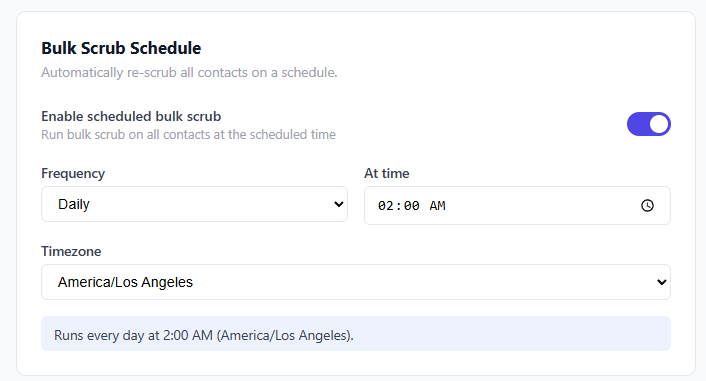
Turn on **Enable scheduled bulk scrub** to automatically re-scrub all contacts on a recurring schedule, then set:
* **Frequency** — Daily, Weekly, or Monthly
* **At time** — the time of day the scrub runs
* **On these days** (Weekly) or **On day of month** (Monthly)
* **Timezone** — the schedule runs in the timezone you choose
A plain-English summary — for example, *"Runs every day at 2:00 AM (America/Los Angeles)."* — confirms exactly when the scrub will run.
### Bulk scrub schedule
Turn on **Enable scheduled bulk scrub** to automatically re-scrub all contacts on a recurring schedule, then set:
* **Frequency** — Daily, Weekly, or Monthly
* **At time** — the time of day the scrub runs
* **On these days** (Weekly) or **On day of month** (Monthly)
* **Timezone** — the schedule runs in the timezone you choose
A plain-English summary — for example, *"Runs every day at 2:00 AM (America/Los Angeles)."* — confirms exactly when the scrub will run.
 Select **Save Sub-Account Settings** at the bottom of the page to apply the credential, scrub-behavior, note-appearance, and schedule settings above.
## Onboard the Sub-Account
Run the **Onboarding** actions once when you first set up DNC Scrub for a sub-account. These run as soon as you click them — they are separate from the **Save Sub-Account Settings** button above.
* **Create Custom Fields** — creates the DNC custom fields used to store scrub results on contacts.
* **Create Onboarding Notes** — adds a pinned *DNC Scrub* note with a scrub link to every existing contact.
Select **Save Sub-Account Settings** at the bottom of the page to apply the credential, scrub-behavior, note-appearance, and schedule settings above.
## Onboard the Sub-Account
Run the **Onboarding** actions once when you first set up DNC Scrub for a sub-account. These run as soon as you click them — they are separate from the **Save Sub-Account Settings** button above.
* **Create Custom Fields** — creates the DNC custom fields used to store scrub results on contacts.
* **Create Onboarding Notes** — adds a pinned *DNC Scrub* note with a scrub link to every existing contact.
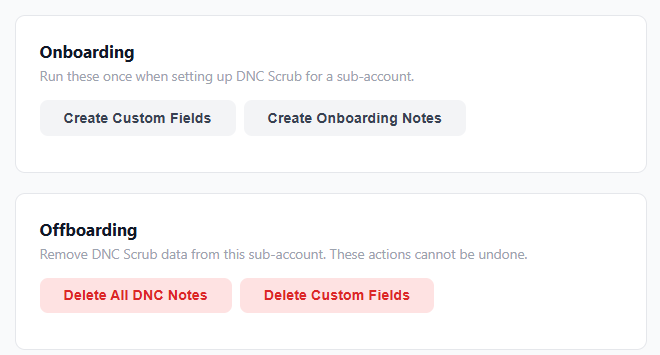 The **Offboarding** actions shown in the same area remove DNC Scrub from the sub-account — see [Offboarding](#offboarding).
## Scrubbing a Contact
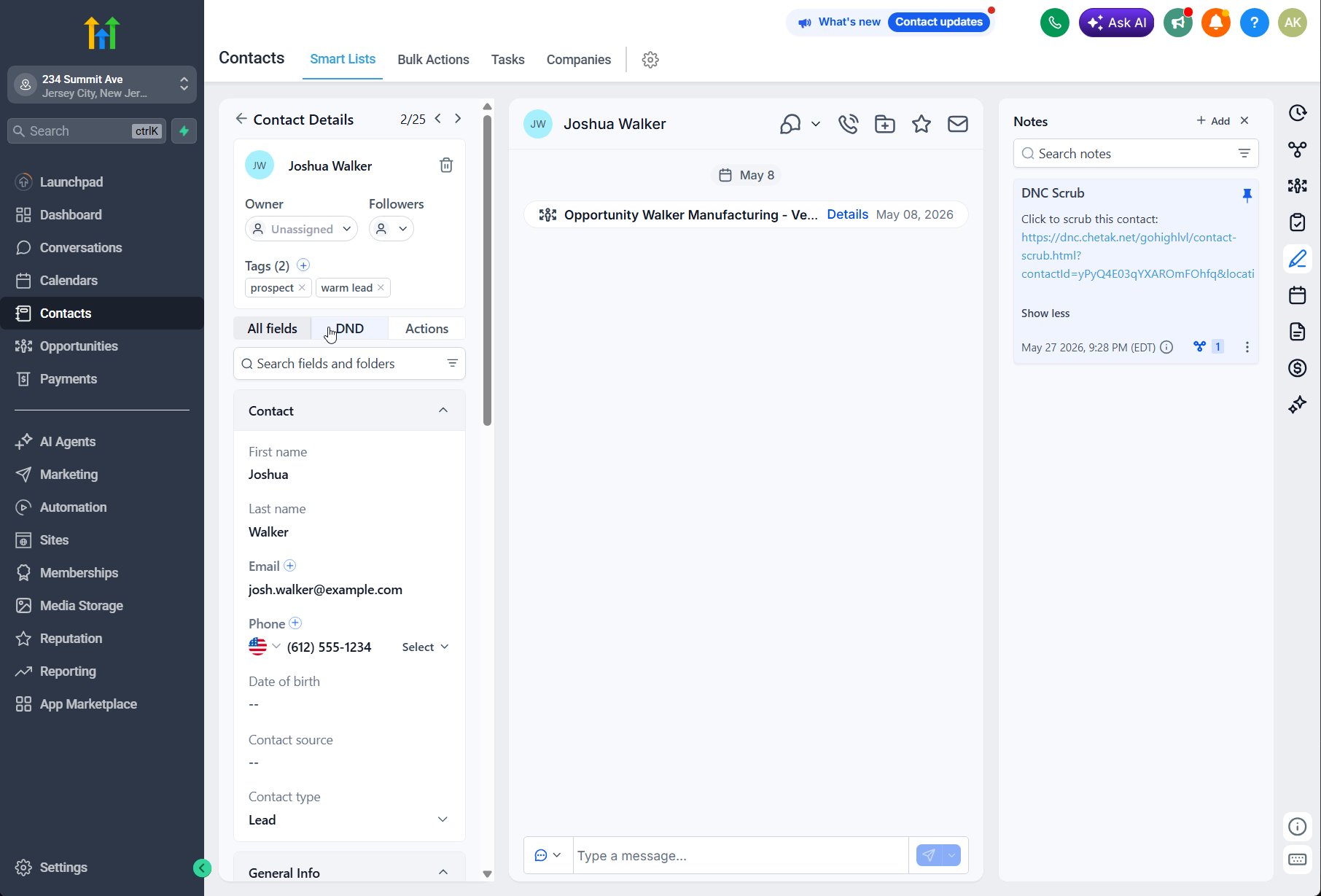
Once a sub-account is onboarded, each contact gets a pinned **DNC Scrub** note containing a link to the scrub page.
On the contact, open the pinned **DNC Scrub** note and select the scrub link.
The **Offboarding** actions shown in the same area remove DNC Scrub from the sub-account — see [Offboarding](#offboarding).
## Scrubbing a Contact
Once a sub-account is onboarded, each contact gets a pinned **DNC Scrub** note containing a link to the scrub page.
On the contact, open the pinned **DNC Scrub** note and select the scrub link.
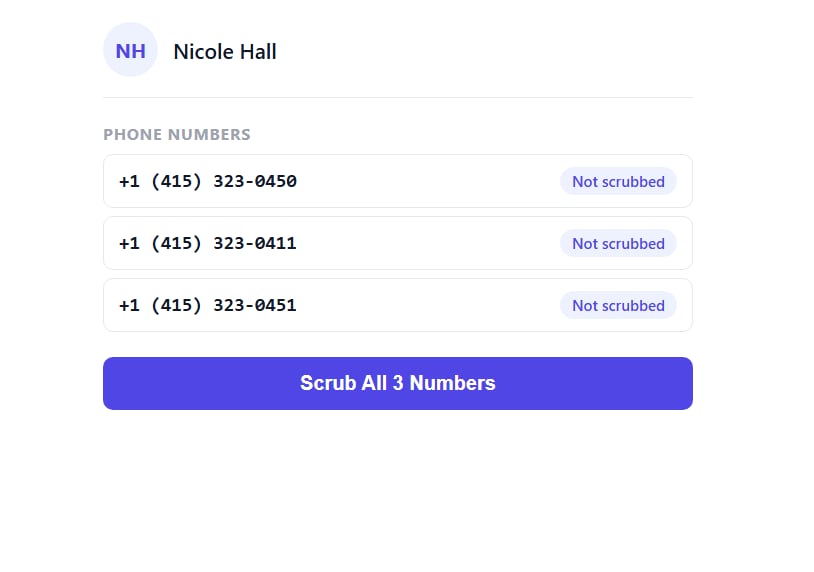
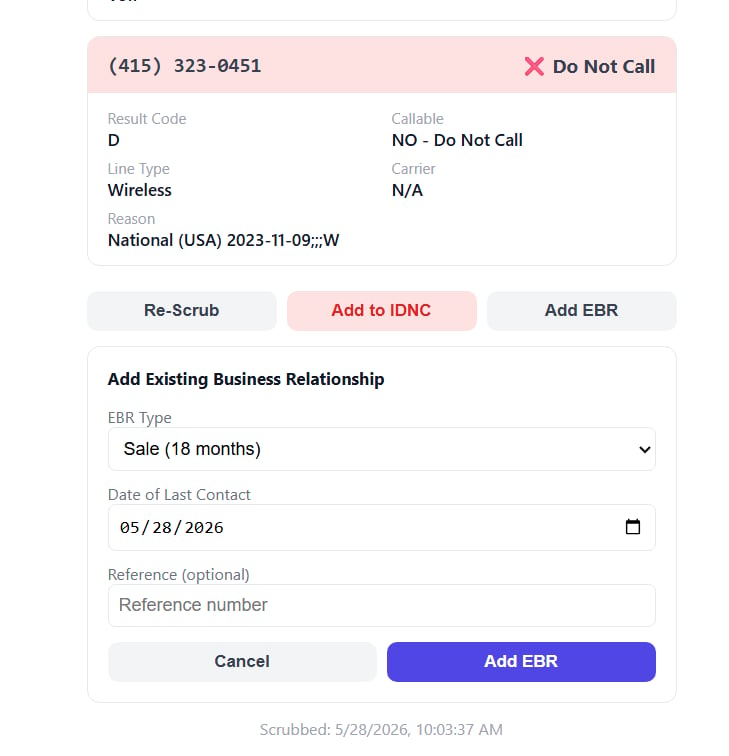
 The scrub page lists every phone number on the contact. Select **Scrub All Numbers** to screen them against DNCScrub.
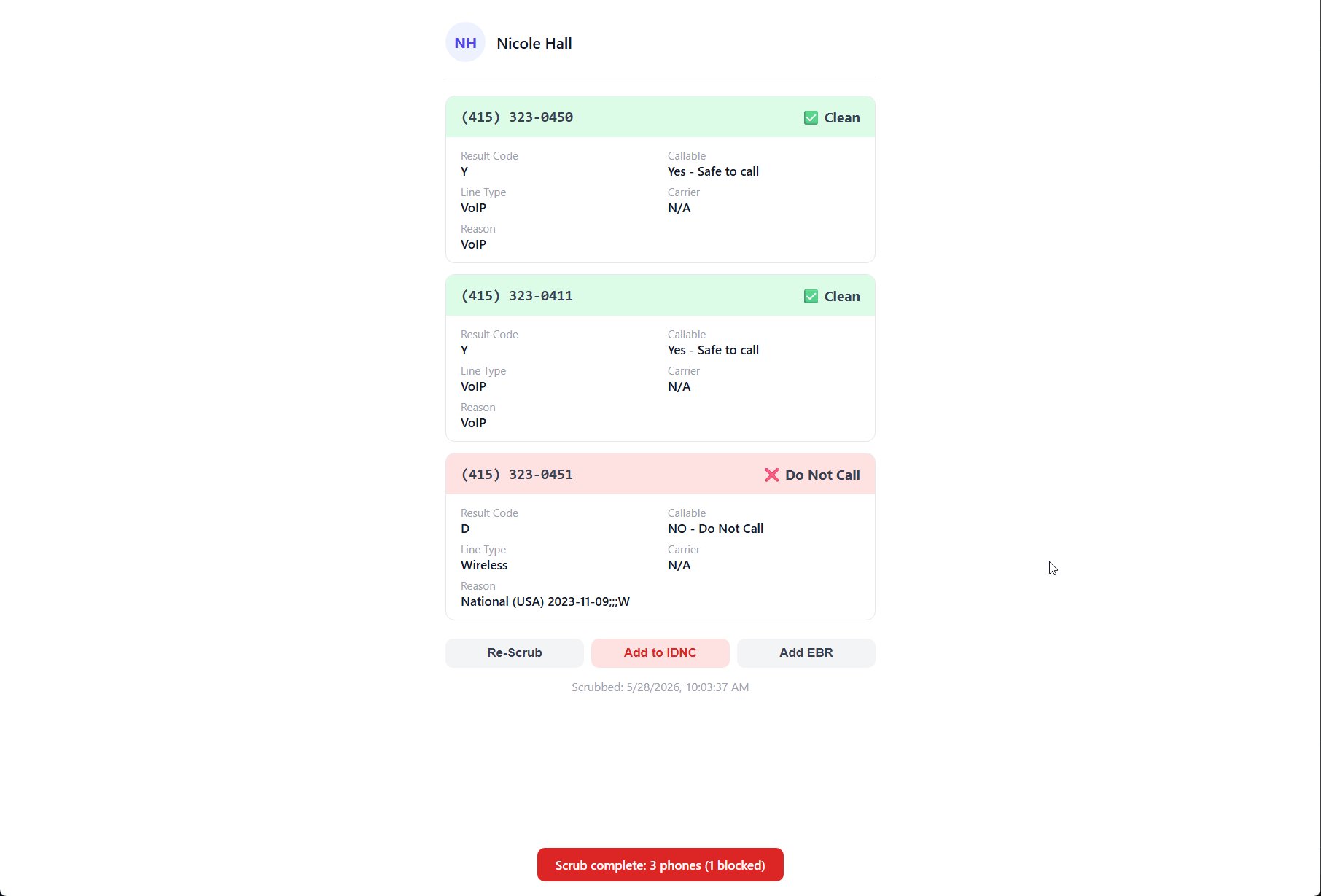
 Each number returns a result card — **Clean** (green) or **Do Not Call** (red) — along with the result details. A summary banner reports how many numbers were scrubbed and how many were blocked.
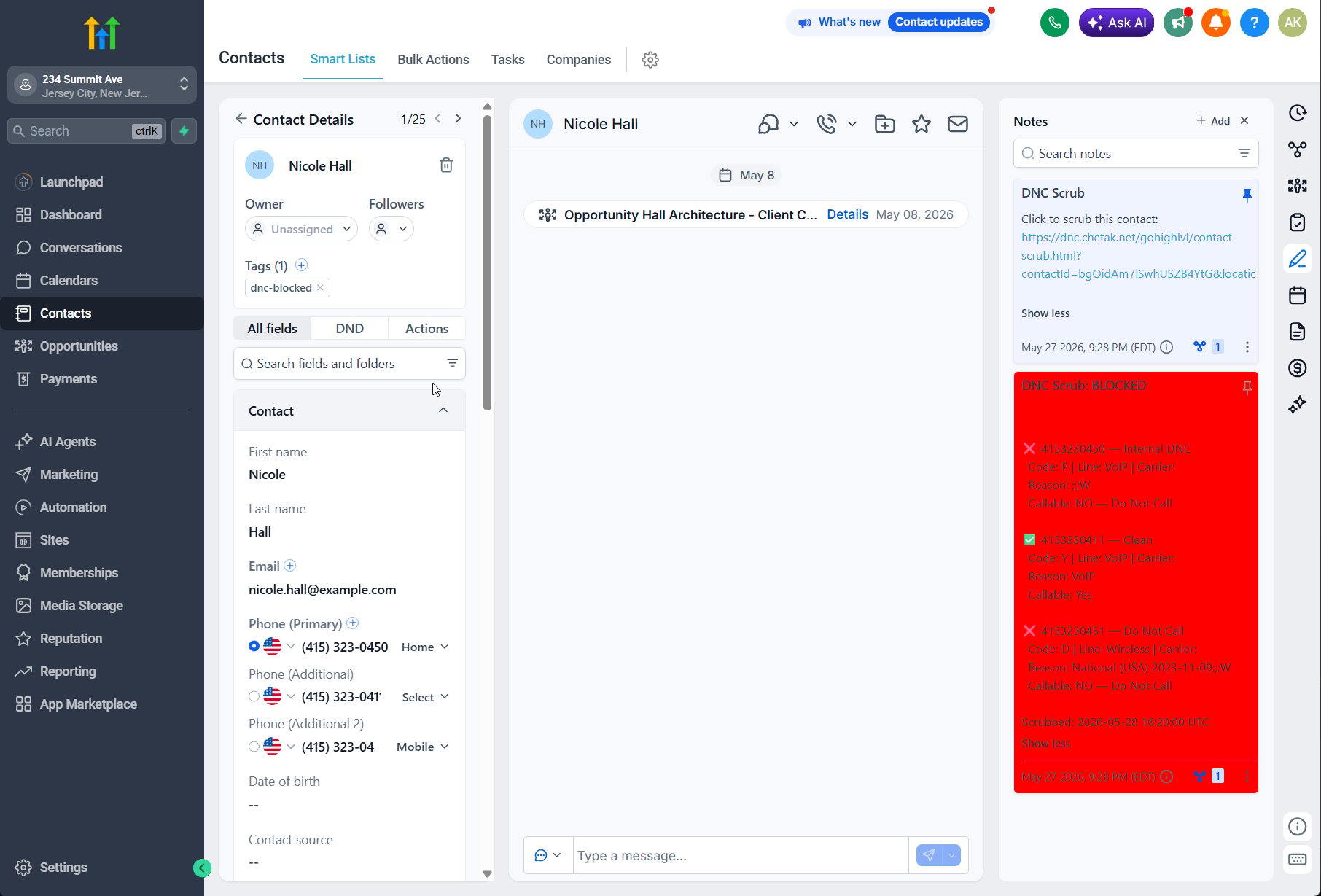
 The result is written back to the contact as a color-coded **DNC Scrub** note, and — when [contact tags](#contact-tags) are enabled — the contact is tagged with its result (for example, `DNC-Blocked`) so you can filter it in smart lists and workflows.
 ### Reading a result
Each phone result card includes:
| Field | Description |
| --------------- | ------------------------------------------------------------------------------- |
| **Result Code** | The DNCScrub status code (for example, `Y` = clean, `D` = Do Not Call) |
| **Callable** | Whether the number is safe to call (*Yes — Safe to call* or *NO — Do Not Call*) |
| **Line Type** | The line type, such as VoIP, Wireless, or Landline |
| **Carrier** | The carrier name when available |
| **Reason** | Why the number was flagged, such as a National DNC registration date |
## Taking Action on a Result
From the scrub results you can act on a number directly:
* **Re-Scrub** — run the scrub again to refresh the result.
* **Add to IDNC** — add the number to your Internal Do Not Call list. The contact is also tagged `DNC-Internal`.
* **Add EBR** — record an Existing Business Relationship so the number remains callable under that exemption.
When you select **Add EBR**, fill in the relationship details:
* **EBR Type** — the relationship and its duration, such as *Sale (18 months)*.
* **Date of Last Contact** — when you last did business with the contact.
* **Reference** — an optional reference number.
### Reading a result
Each phone result card includes:
| Field | Description |
| --------------- | ------------------------------------------------------------------------------- |
| **Result Code** | The DNCScrub status code (for example, `Y` = clean, `D` = Do Not Call) |
| **Callable** | Whether the number is safe to call (*Yes — Safe to call* or *NO — Do Not Call*) |
| **Line Type** | The line type, such as VoIP, Wireless, or Landline |
| **Carrier** | The carrier name when available |
| **Reason** | Why the number was flagged, such as a National DNC registration date |
## Taking Action on a Result
From the scrub results you can act on a number directly:
* **Re-Scrub** — run the scrub again to refresh the result.
* **Add to IDNC** — add the number to your Internal Do Not Call list. The contact is also tagged `DNC-Internal`.
* **Add EBR** — record an Existing Business Relationship so the number remains callable under that exemption.
When you select **Add EBR**, fill in the relationship details:
* **EBR Type** — the relationship and its duration, such as *Sale (18 months)*.
* **Date of Last Contact** — when you last did business with the contact.
* **Reference** — an optional reference number.
 ## Automated and Bulk Scrubbing
Beyond scrubbing contacts one at a time, you can automate the process:
* Enable **Auto-scrub new contacts** (see [Configure a Sub-Account](#configure-a-sub-account)) to scrub contacts as workflows create them.
* Enable **Auto-scrub when the note link is opened** (see [Configure a Sub-Account](#configure-a-sub-account)) to scrub automatically when a rep opens the DNC Scrub link from a contact's notes.
* Enable the **Bulk Scrub Schedule** (see [Configure a Sub-Account](#configure-a-sub-account)) to re-scrub all contacts on a recurring schedule, skipping any contact scrubbed within the **Re-scrub interval**.
## Note Link Security
Every **DNC Scrub** note link is signed with a private key unique to your agency, so only scrub links your account generates are accepted. You can view and rotate this key under **DNC Settings → Note Link Security**, where it is shown masked (for example, `••••••••abcd`).
Rotate the key if you believe a scrub link has been shared outside your team.
Select **↻ Rotate** next to the signing key, then confirm. The key is replaced immediately.
Rotating **invalidates every existing scrub link**. For each sub-account, run **Delete All DNC Notes** and then **Create Onboarding Notes** so contacts receive fresh, valid links.
Until you recreate the notes, opening an old scrub link shows *"This DNC Scrub link is invalid or has been revoked."* Recreate the notes to restore access.
## Offboarding
To remove DNC Scrub data from a sub-account, use the **Offboarding** actions in DNC Settings:
* **Delete All DNC Notes**
* **Delete Custom Fields**
Offboarding actions cannot be undone. They permanently remove the DNC Scrub notes and custom fields from the sub-account.
## Support
* [DNCScrub API Documentation](/api-reference/overview)
* [GoHighLevel Documentation](https://help.gohighlevel.com/)
* [Contact Support](mailto:support@dnc.com)
## Automated and Bulk Scrubbing
Beyond scrubbing contacts one at a time, you can automate the process:
* Enable **Auto-scrub new contacts** (see [Configure a Sub-Account](#configure-a-sub-account)) to scrub contacts as workflows create them.
* Enable **Auto-scrub when the note link is opened** (see [Configure a Sub-Account](#configure-a-sub-account)) to scrub automatically when a rep opens the DNC Scrub link from a contact's notes.
* Enable the **Bulk Scrub Schedule** (see [Configure a Sub-Account](#configure-a-sub-account)) to re-scrub all contacts on a recurring schedule, skipping any contact scrubbed within the **Re-scrub interval**.
## Note Link Security
Every **DNC Scrub** note link is signed with a private key unique to your agency, so only scrub links your account generates are accepted. You can view and rotate this key under **DNC Settings → Note Link Security**, where it is shown masked (for example, `••••••••abcd`).
Rotate the key if you believe a scrub link has been shared outside your team.
Select **↻ Rotate** next to the signing key, then confirm. The key is replaced immediately.
Rotating **invalidates every existing scrub link**. For each sub-account, run **Delete All DNC Notes** and then **Create Onboarding Notes** so contacts receive fresh, valid links.
Until you recreate the notes, opening an old scrub link shows *"This DNC Scrub link is invalid or has been revoked."* Recreate the notes to restore access.
## Offboarding
To remove DNC Scrub data from a sub-account, use the **Offboarding** actions in DNC Settings:
* **Delete All DNC Notes**
* **Delete Custom Fields**
Offboarding actions cannot be undone. They permanently remove the DNC Scrub notes and custom fields from the sub-account.
## Support
* [DNCScrub API Documentation](/api-reference/overview)
* [GoHighLevel Documentation](https://help.gohighlevel.com/)
* [Contact Support](mailto:support@dnc.com)