`https://
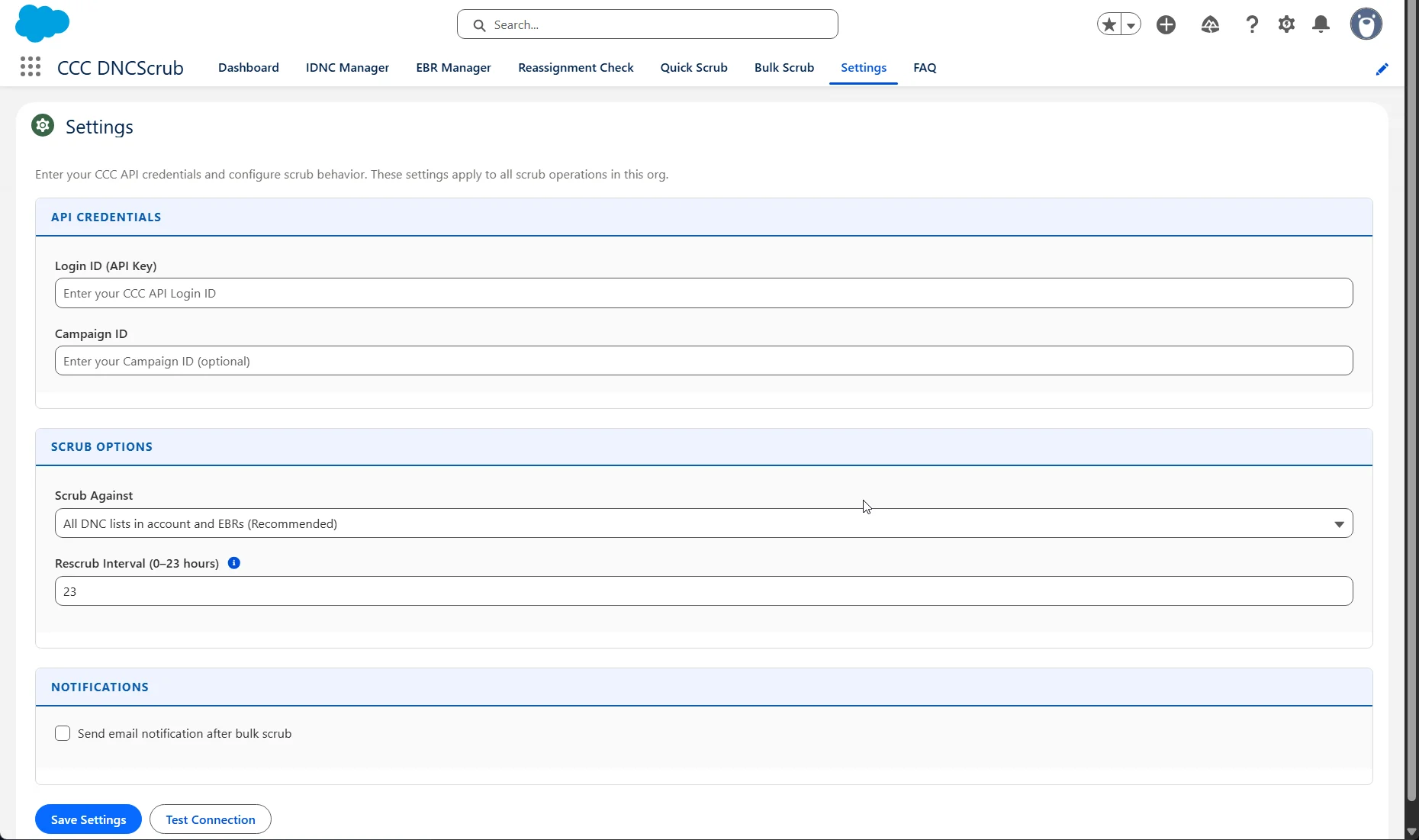
 ## Dashboard
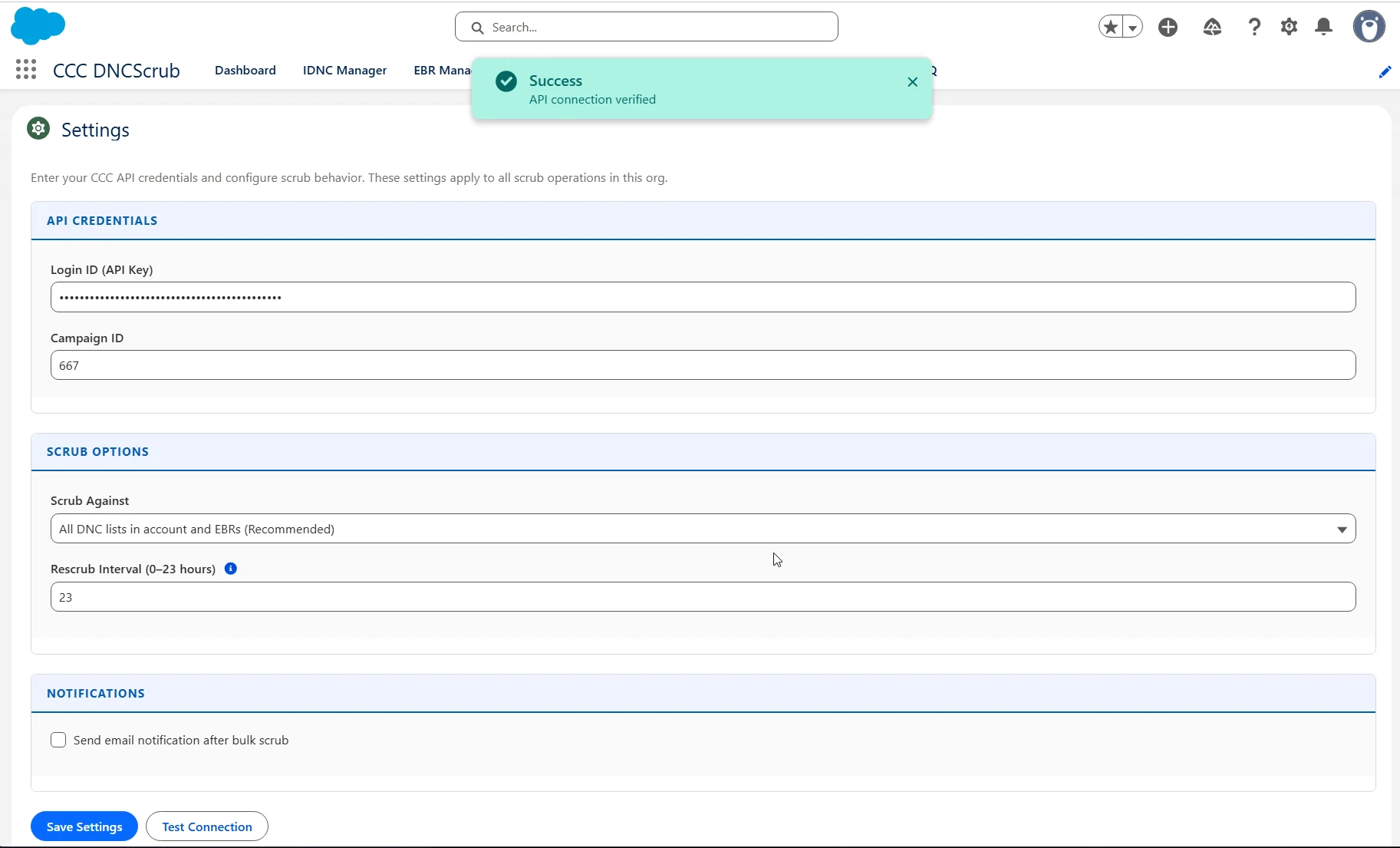
Once connected, the **Dashboard** tab is your home base — an at-a-glance view of scrubbing activity (Do Not Call scrubs today and this week, Do Not Call numbers identified today, and reassigned checks today), along with an embedded Quick Scrub and a Recent Activity log.
## Dashboard
Once connected, the **Dashboard** tab is your home base — an at-a-glance view of scrubbing activity (Do Not Call scrubs today and this week, Do Not Call numbers identified today, and reassigned checks today), along with an embedded Quick Scrub and a Recent Activity log.
 ## Step 3: Assign Permission Sets
The app ships with two permission sets. Assign them to your users from **Setup → Permission Sets**.
| Permission Set | For | Access |
| -------------- | -------------- | -------------------------------------------------------------------------------------------------------------------- |
| **CCC Admin** | Administrators | Full read/write on all CCC objects and fields, all tabs including Settings, and bulk schedule management |
| **CCC User** | Standard users | Read-only scrub fields on records, can trigger scrubs and view results; no access to Settings or schedule management |
## Step 3: Assign Permission Sets
The app ships with two permission sets. Assign them to your users from **Setup → Permission Sets**.
| Permission Set | For | Access |
| -------------- | -------------- | -------------------------------------------------------------------------------------------------------------------- |
| **CCC Admin** | Administrators | Full read/write on all CCC objects and fields, all tabs including Settings, and bulk schedule management |
| **CCC User** | Standard users | Read-only scrub fields on records, can trigger scrubs and view results; no access to Settings or schedule management |
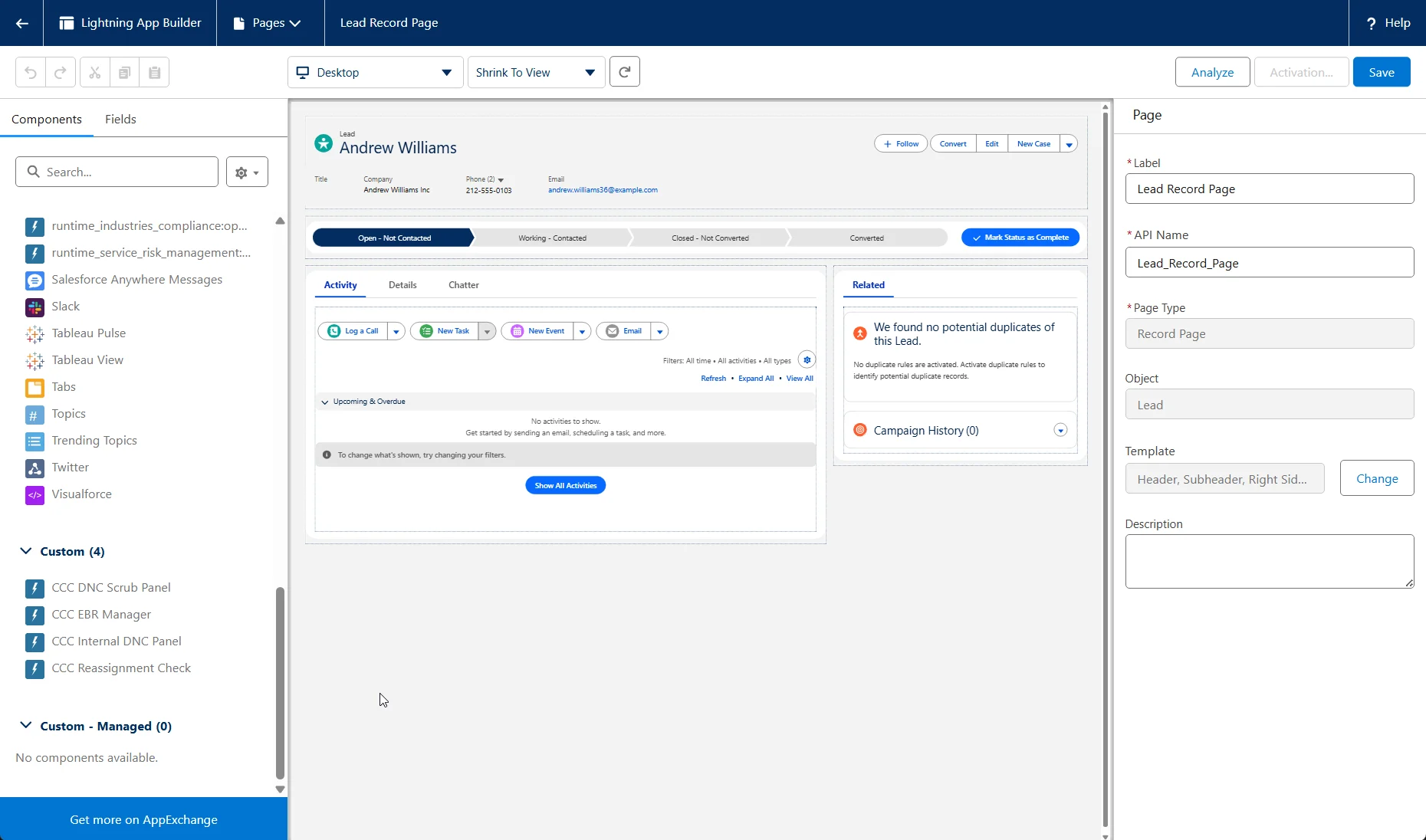
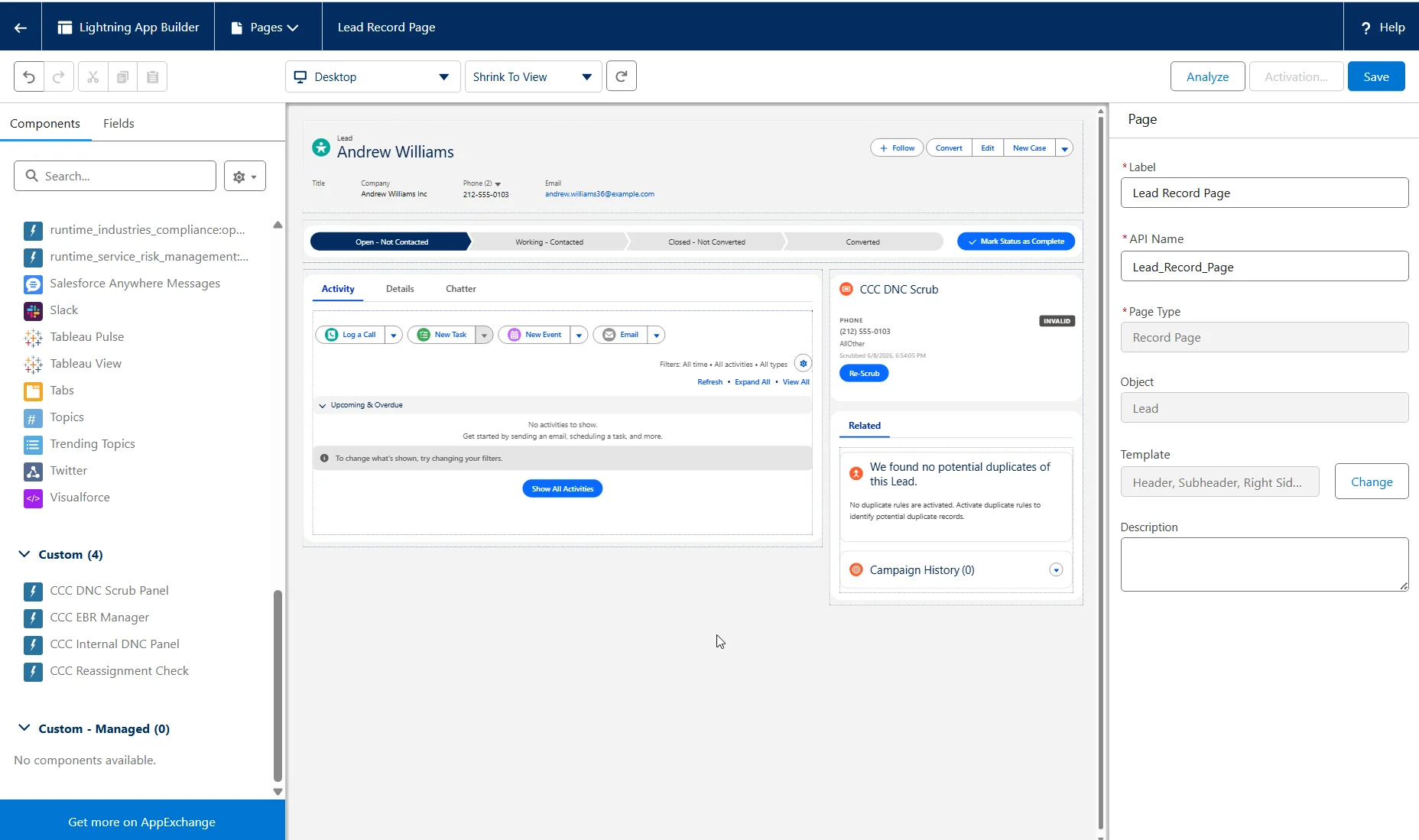 ### Scrub Panel properties
| Property | What it does |
| ------------------------------------- | ----------------------------------------------------------------------------------------------------------------- |
| **Phone Fields to Scrub** | Comma-separated phone field API names to display and scrub (e.g. `Phone,MobilePhone`) |
| **Disable Auto-Scrub on Record View** | Turns off automatic scrubbing when the panel loads, so numbers are only checked when the user clicks **Re-Scrub** |
### Scrub Panel properties
| Property | What it does |
| ------------------------------------- | ----------------------------------------------------------------------------------------------------------------- |
| **Phone Fields to Scrub** | Comma-separated phone field API names to display and scrub (e.g. `Phone,MobilePhone`) |
| **Disable Auto-Scrub on Record View** | Turns off automatic scrubbing when the panel loads, so numbers are only checked when the user clicks **Re-Scrub** |
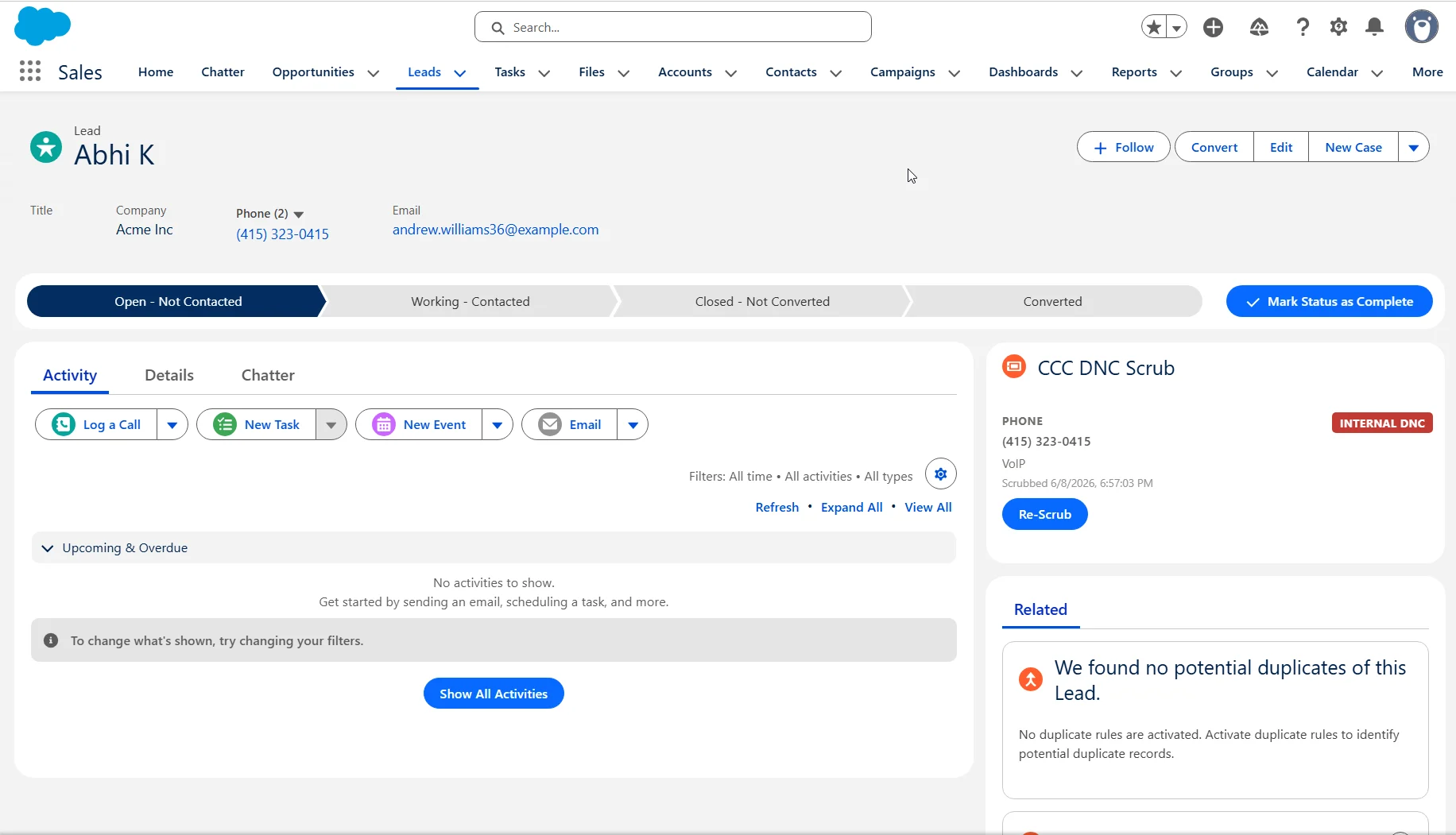 The record's summary fields always reflect the **worst** result across all phone fields. If `Phone` is *Clean* but `MobilePhone` is *Do Not Call*, the record shows **Do Not Call**.
### Reading the result codes
Each phone number receives a result code. Codes marked **Callable: Yes** are considered safe to call.
| Code | Status | Callable | Description |
| ------------------ | ------------------- | -------- | ------------------------------------------------- |
| `C` | Clean | Yes | Not on any DNC list |
| `D` | Do Not Call | No | On the National Do Not Call Registry |
| `B` | Blocked | No | Number is blocked |
| `P` | Internal DNC | No | On your Internal Do Not Call list |
| `W` | Wireless | Yes | Wireless/mobile number (may require TCPA consent) |
| `L` | Restricted Wireless | No | Wireless with calling restrictions |
| `E`, `F`, `G`, `H` | EBR | Yes | Has an active EBR exemption |
| `O` | EBR Override | Yes | EBR override in effect |
| `I`, `M` | Invalid | No | Not a valid phone number |
| `X` | Exemption | Yes | A legal exemption applies |
| `LIT` | Litigator | No | Known TCPA litigator |
| `NL` | Not Litigator | Yes | Cleared by litigator screening |
## Quick Scrub
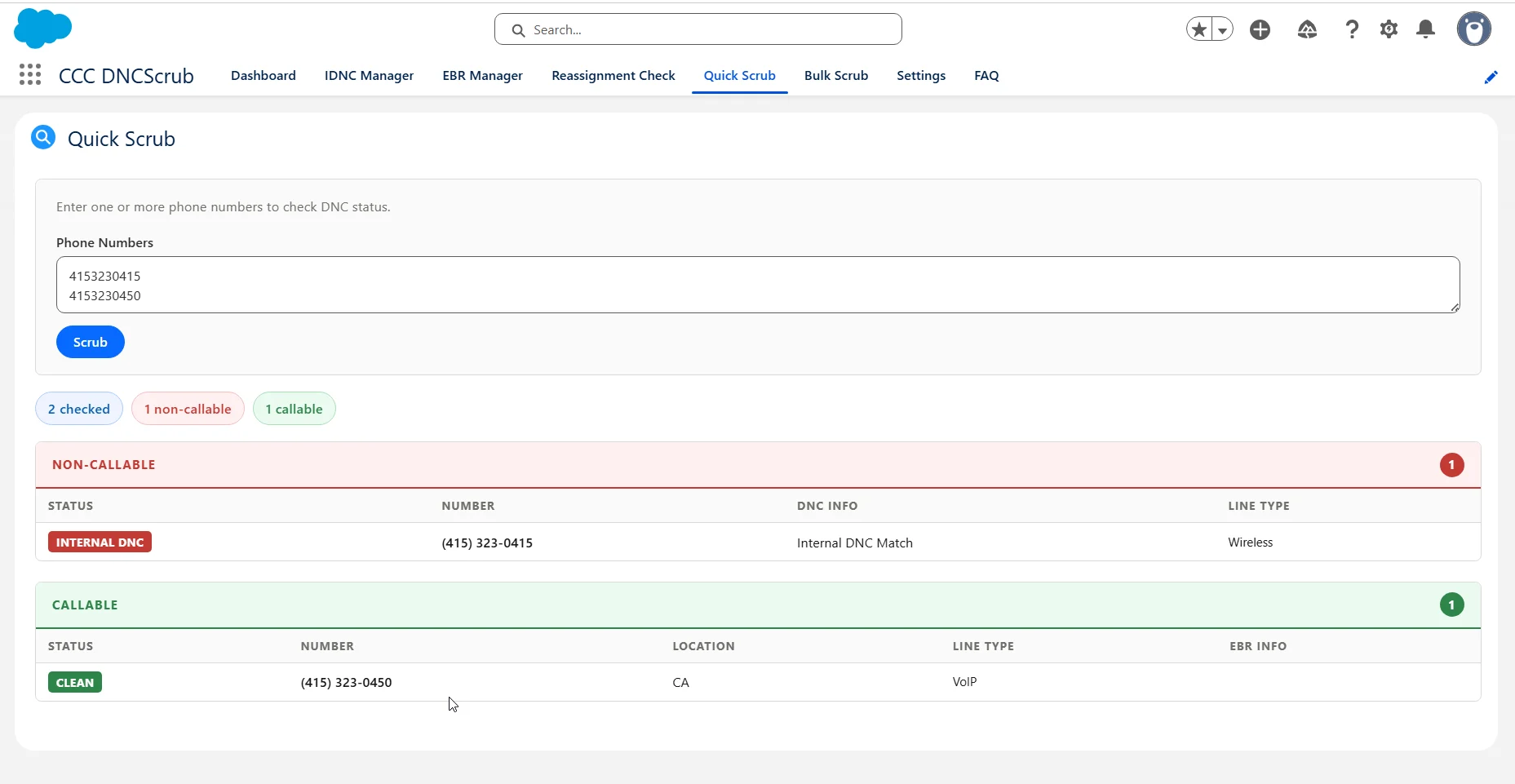
The **Quick Scrub** tab (also embedded in the Dashboard) is for ad-hoc checks. Paste one or more phone numbers — comma or newline separated — and get immediate results split into callable and non-callable groups. Quick Scrub does **not** require a Salesforce record and does **not** save results to any record.
The record's summary fields always reflect the **worst** result across all phone fields. If `Phone` is *Clean* but `MobilePhone` is *Do Not Call*, the record shows **Do Not Call**.
### Reading the result codes
Each phone number receives a result code. Codes marked **Callable: Yes** are considered safe to call.
| Code | Status | Callable | Description |
| ------------------ | ------------------- | -------- | ------------------------------------------------- |
| `C` | Clean | Yes | Not on any DNC list |
| `D` | Do Not Call | No | On the National Do Not Call Registry |
| `B` | Blocked | No | Number is blocked |
| `P` | Internal DNC | No | On your Internal Do Not Call list |
| `W` | Wireless | Yes | Wireless/mobile number (may require TCPA consent) |
| `L` | Restricted Wireless | No | Wireless with calling restrictions |
| `E`, `F`, `G`, `H` | EBR | Yes | Has an active EBR exemption |
| `O` | EBR Override | Yes | EBR override in effect |
| `I`, `M` | Invalid | No | Not a valid phone number |
| `X` | Exemption | Yes | A legal exemption applies |
| `LIT` | Litigator | No | Known TCPA litigator |
| `NL` | Not Litigator | Yes | Cleared by litigator screening |
## Quick Scrub
The **Quick Scrub** tab (also embedded in the Dashboard) is for ad-hoc checks. Paste one or more phone numbers — comma or newline separated — and get immediate results split into callable and non-callable groups. Quick Scrub does **not** require a Salesforce record and does **not** save results to any record.
 ## Internal DNC (IDNC) Management
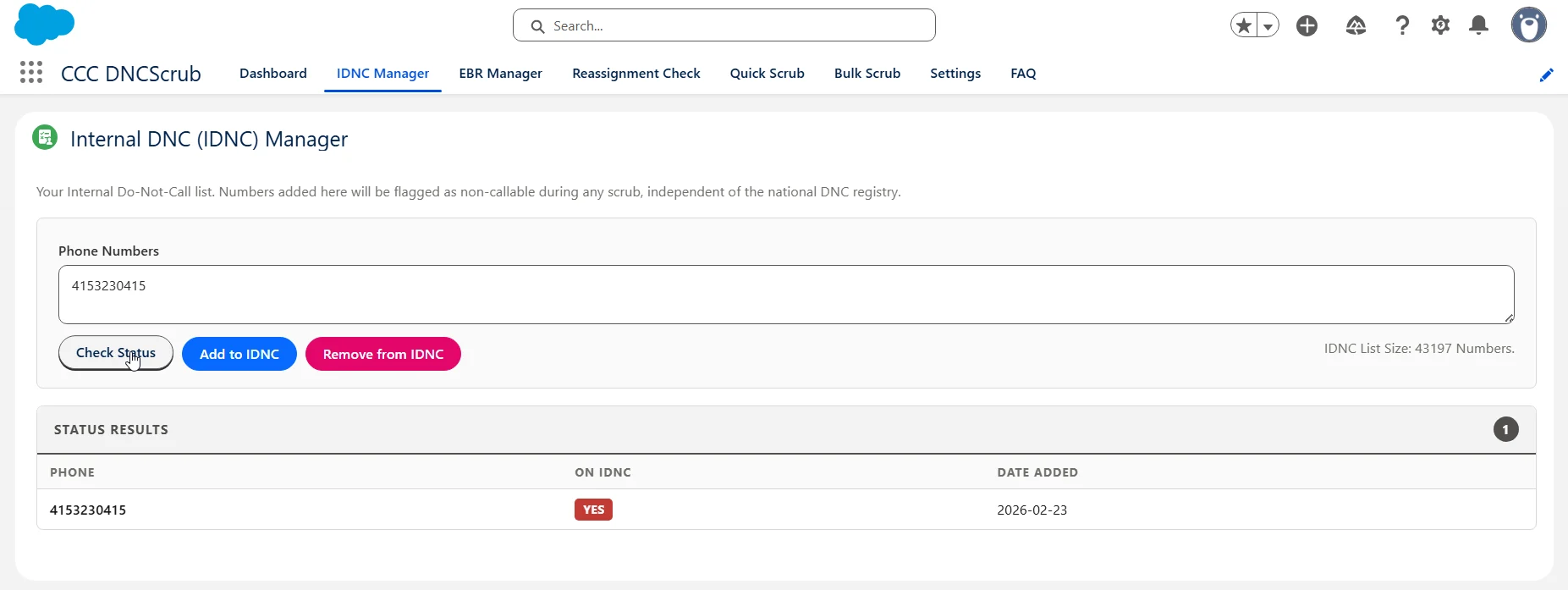
Your **Internal DNC** list is your organization's private do-not-call list, separate from the national registry. Use it when a customer requests not to be called, you receive a written opt-out, or you need to block numbers beyond federal/state lists.
Manage it from the **IDNC Manager** tab — or the IDNC panel on a record page. Enter one or more numbers and use **Check Status**, **Add to IDNC**, or **Remove from IDNC**. Numbers on the IDNC return result code `P` (Internal DNC) and are marked non-callable in all future scrubs.
## Internal DNC (IDNC) Management
Your **Internal DNC** list is your organization's private do-not-call list, separate from the national registry. Use it when a customer requests not to be called, you receive a written opt-out, or you need to block numbers beyond federal/state lists.
Manage it from the **IDNC Manager** tab — or the IDNC panel on a record page. Enter one or more numbers and use **Check Status**, **Add to IDNC**, or **Remove from IDNC**. Numbers on the IDNC return result code `P` (Internal DNC) and are marked non-callable in all future scrubs.
 ## EBR Management
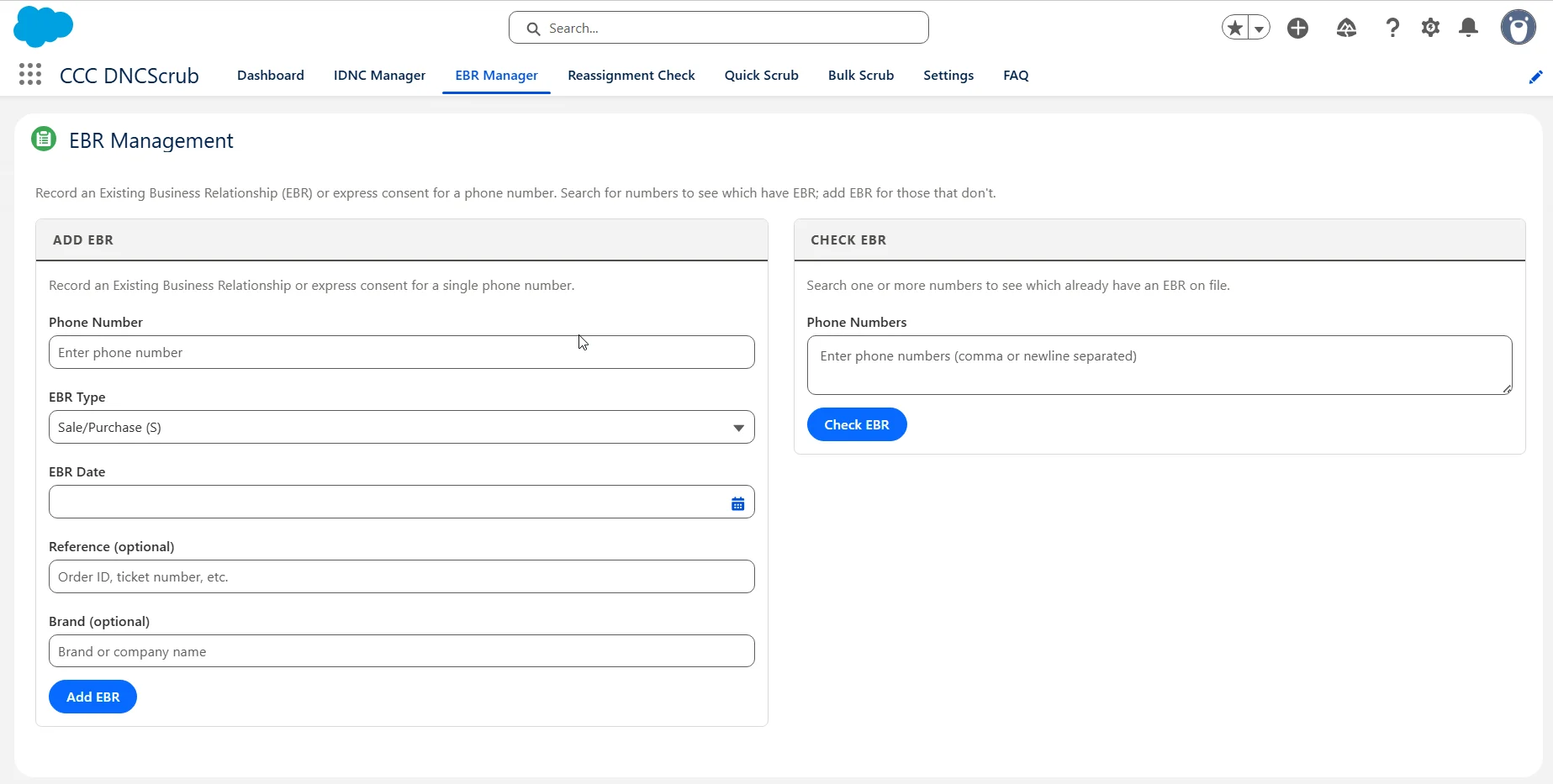
An **Existing Business Relationship (EBR)** is a legal exemption that can let you call a DNC-listed number. From the **EBR Manager** tab, use **Add EBR** to record a relationship for a number (EBR type, date, optional reference and brand), and **Check EBR** to see which numbers already have one on file.
## EBR Management
An **Existing Business Relationship (EBR)** is a legal exemption that can let you call a DNC-listed number. From the **EBR Manager** tab, use **Add EBR** to record a relationship for a number (EBR type, date, optional reference and brand), and **Check EBR** to see which numbers already have one on file.
 | EBR Type | Exemption window |
| ------------------- | ------------------------------------------ |
| **Sale** | 18 months from the last transaction |
| **Inquiry** | 3 months from the consumer's inquiry |
| **Permission** | Express written consent from the consumer |
| **Recent Sale** | Recent transaction (organization-specific) |
| **Newspaper Trial** | Newspaper subscription trial period |
When an EBR is active, the scrub returns codes `E`, `F`, `G`, `H`, or `O` instead of `D`, indicating the number is callable under the exemption.
## Reassignment Check (Authority+)
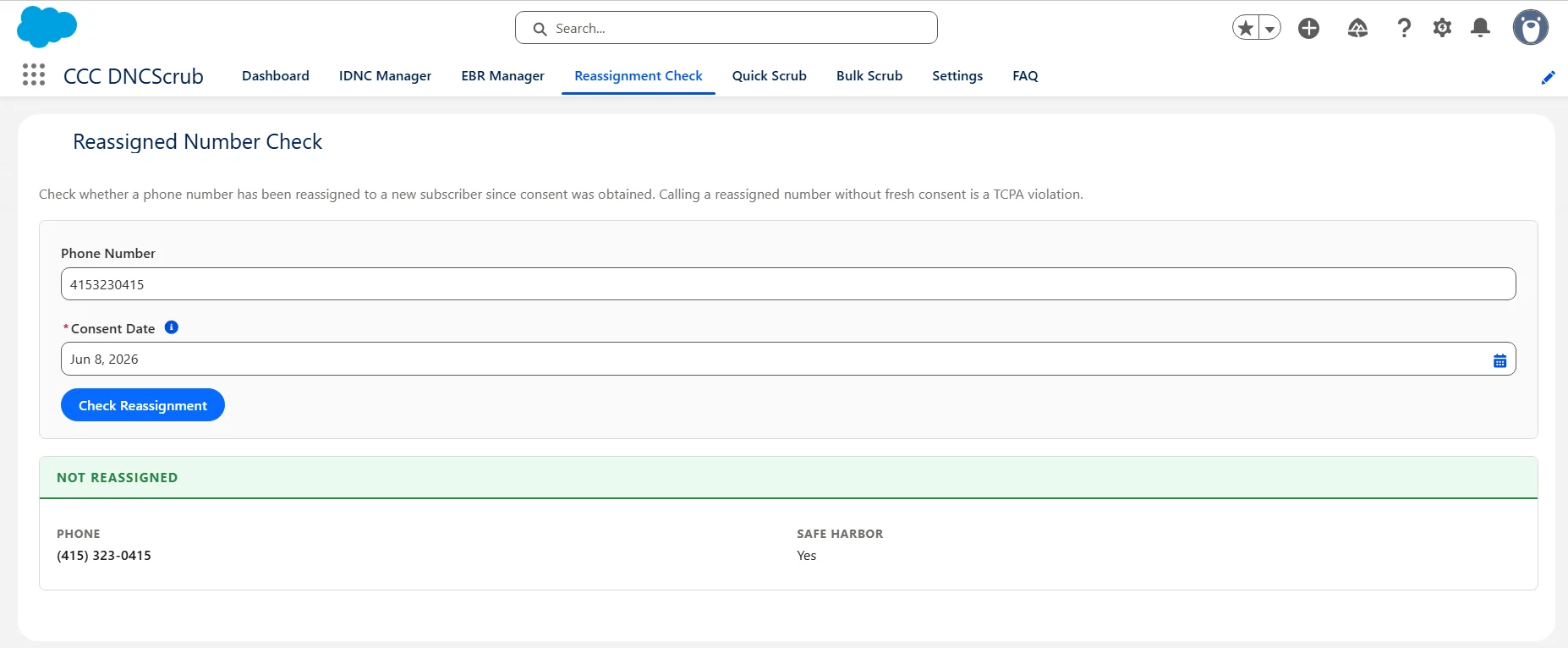
Under the TCPA, calling a number that was reassigned to a new subscriber after you obtained consent can create legal liability. The **Reassignment Check** tab (Authority+) verifies whether a number still belongs to the original subscriber.
| EBR Type | Exemption window |
| ------------------- | ------------------------------------------ |
| **Sale** | 18 months from the last transaction |
| **Inquiry** | 3 months from the consumer's inquiry |
| **Permission** | Express written consent from the consumer |
| **Recent Sale** | Recent transaction (organization-specific) |
| **Newspaper Trial** | Newspaper subscription trial period |
When an EBR is active, the scrub returns codes `E`, `F`, `G`, `H`, or `O` instead of `D`, indicating the number is callable under the exemption.
## Reassignment Check (Authority+)
Under the TCPA, calling a number that was reassigned to a new subscriber after you obtained consent can create legal liability. The **Reassignment Check** tab (Authority+) verifies whether a number still belongs to the original subscriber.
 ## Bulk Scrub and Scheduling
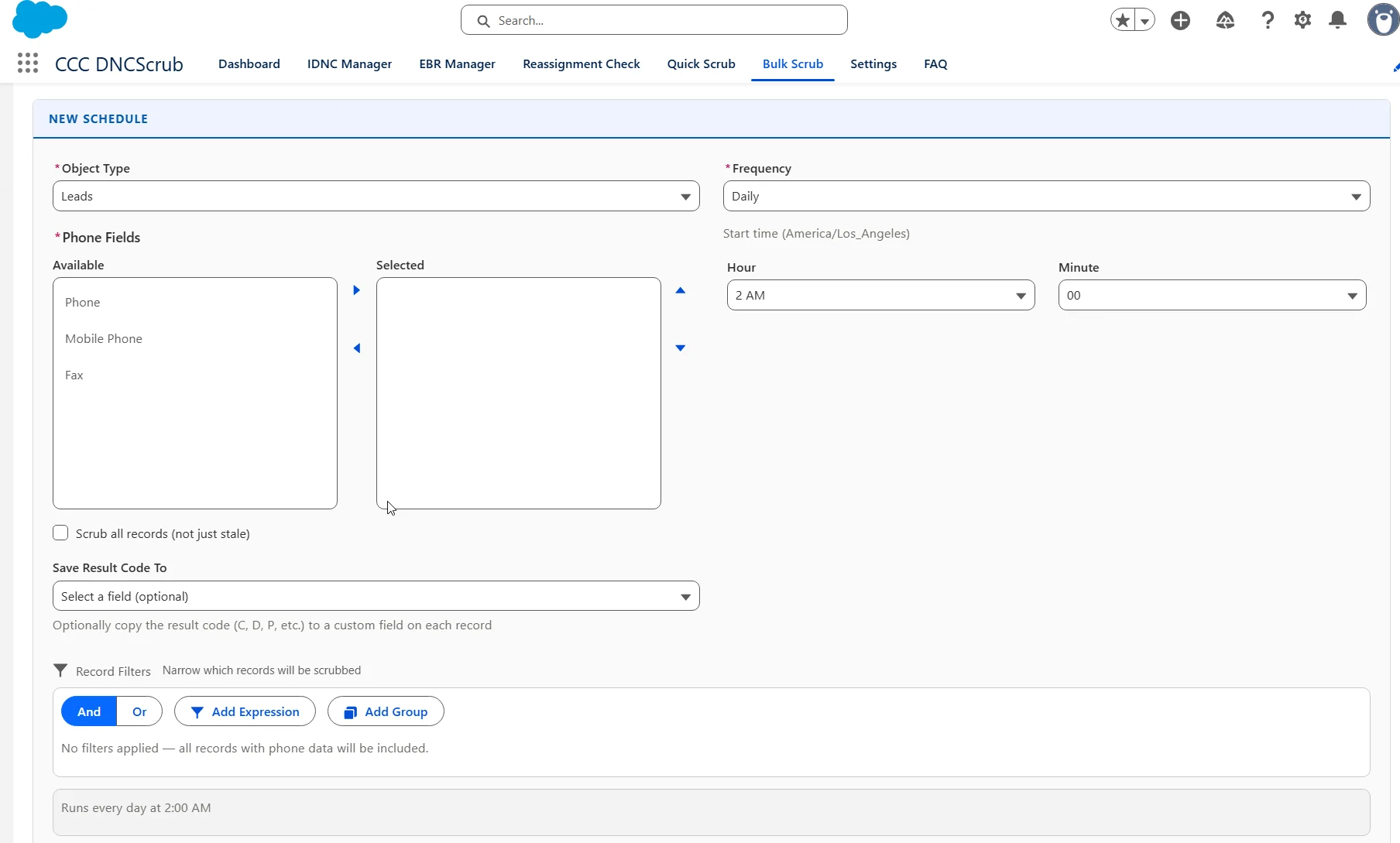
The **Bulk Scrub** tab scrubs records in batches and can run on a schedule.
## Bulk Scrub and Scheduling
The **Bulk Scrub** tab scrubs records in batches and can run on a schedule.
 ## Where Scrub Data Is Stored
Aggregate (worst-case) results are stored in custom fields on Lead, Contact, Account, and Campaign Member:
| Field Label | API Name | Description |
| ------------- | ---------------------- | ----------------------------------------------------- |
| Scrub Result | `CCC_Scrub_Result__c` | Result code from the most recent scrub |
| Scrub Status | `CCC_Scrub_Status__c` | Human-readable status (Clean, Do Not Call, EBR, etc.) |
| Last Scrubbed | `CCC_Last_Scrubbed__c` | Date and time of the most recent scrub |
| Scrub Reason | `CCC_Scrub_Reason__c` | DNC list match detail or reason |
| Is Reassigned | `CCC_Is_Reassigned__c` | Whether the phone was reassigned (Authority+) |
| EBR Type | `CCC_EBR_Type__c` | Type of EBR exemption, if any |
When multiple phone fields are configured, each gets its own **Scrub Detail** (`CCC_Scrub_Detail__c`) child record tracking that field's result code, status, line type, carrier, region, and last-scrubbed time. Every operation is also written to the immutable **Scrub Log** (`CCC_Scrub_Log__c`) audit object.
### Using scrub data in Salesforce
Because the CCC fields are standard custom fields, they work everywhere:
* **Reports & dashboards** — group or filter on `CCC_Scrub_Status__c` to report compliance across your database.
* **List views** — filter to see all *Do Not Call* or *Clean* records at a glance.
* **Flow / Process Builder** — trigger actions when `CCC_Scrub_Status__c` changes (e.g. notify a manager when a lead is flagged as a litigator).
* **Validation rules** — block lead conversion or activity creation when the status is *Do Not Call* or *Litigator*.
## Administration Notes
* **Rescrub interval** — set on the Settings tab (0–23 hours); applies org-wide to panels and bulk operations.
* **Remote Site Settings** — three sites must be active for all features. They are included in the package; verify them under **Setup → Remote Site Settings**:
| Name | URL | Used For |
| ------------------ | ------------------------------ | -------------------------------- |
| `CCC_FullScrub` | `https://www.dncscrub.com` | DNC scrubbing, IDNC, and EBR |
| `CCC_DataAPI` | `https://dataapi.dncscrub.com` | Authority+ reassignment checking |
| `CCC_LitigatorAPI` | `https://api.dncscrub.com` | Litigator screening |
## Support
* [DNCScrub API Documentation](/api-reference/overview)
* [Salesforce Lightning Experience Help](https://help.salesforce.com/)
* [Contact Support](mailto:support@dnc.com)
## Where Scrub Data Is Stored
Aggregate (worst-case) results are stored in custom fields on Lead, Contact, Account, and Campaign Member:
| Field Label | API Name | Description |
| ------------- | ---------------------- | ----------------------------------------------------- |
| Scrub Result | `CCC_Scrub_Result__c` | Result code from the most recent scrub |
| Scrub Status | `CCC_Scrub_Status__c` | Human-readable status (Clean, Do Not Call, EBR, etc.) |
| Last Scrubbed | `CCC_Last_Scrubbed__c` | Date and time of the most recent scrub |
| Scrub Reason | `CCC_Scrub_Reason__c` | DNC list match detail or reason |
| Is Reassigned | `CCC_Is_Reassigned__c` | Whether the phone was reassigned (Authority+) |
| EBR Type | `CCC_EBR_Type__c` | Type of EBR exemption, if any |
When multiple phone fields are configured, each gets its own **Scrub Detail** (`CCC_Scrub_Detail__c`) child record tracking that field's result code, status, line type, carrier, region, and last-scrubbed time. Every operation is also written to the immutable **Scrub Log** (`CCC_Scrub_Log__c`) audit object.
### Using scrub data in Salesforce
Because the CCC fields are standard custom fields, they work everywhere:
* **Reports & dashboards** — group or filter on `CCC_Scrub_Status__c` to report compliance across your database.
* **List views** — filter to see all *Do Not Call* or *Clean* records at a glance.
* **Flow / Process Builder** — trigger actions when `CCC_Scrub_Status__c` changes (e.g. notify a manager when a lead is flagged as a litigator).
* **Validation rules** — block lead conversion or activity creation when the status is *Do Not Call* or *Litigator*.
## Administration Notes
* **Rescrub interval** — set on the Settings tab (0–23 hours); applies org-wide to panels and bulk operations.
* **Remote Site Settings** — three sites must be active for all features. They are included in the package; verify them under **Setup → Remote Site Settings**:
| Name | URL | Used For |
| ------------------ | ------------------------------ | -------------------------------- |
| `CCC_FullScrub` | `https://www.dncscrub.com` | DNC scrubbing, IDNC, and EBR |
| `CCC_DataAPI` | `https://dataapi.dncscrub.com` | Authority+ reassignment checking |
| `CCC_LitigatorAPI` | `https://api.dncscrub.com` | Litigator screening |
## Support
* [DNCScrub API Documentation](/api-reference/overview)
* [Salesforce Lightning Experience Help](https://help.salesforce.com/)
* [Contact Support](mailto:support@dnc.com)