

Prerequisites
- A GoHighLevel agency account with permission to install marketplace apps
- A DNCScrub account with API access (your Login ID / API key and a Campaign ID)
Install the App
DNCScrub installs once at the agency level and then works across the sub-accounts you choose. You install it from the GoHighLevel Marketplace.1
Open the Marketplace
In your GoHighLevel agency account, open the App Marketplace.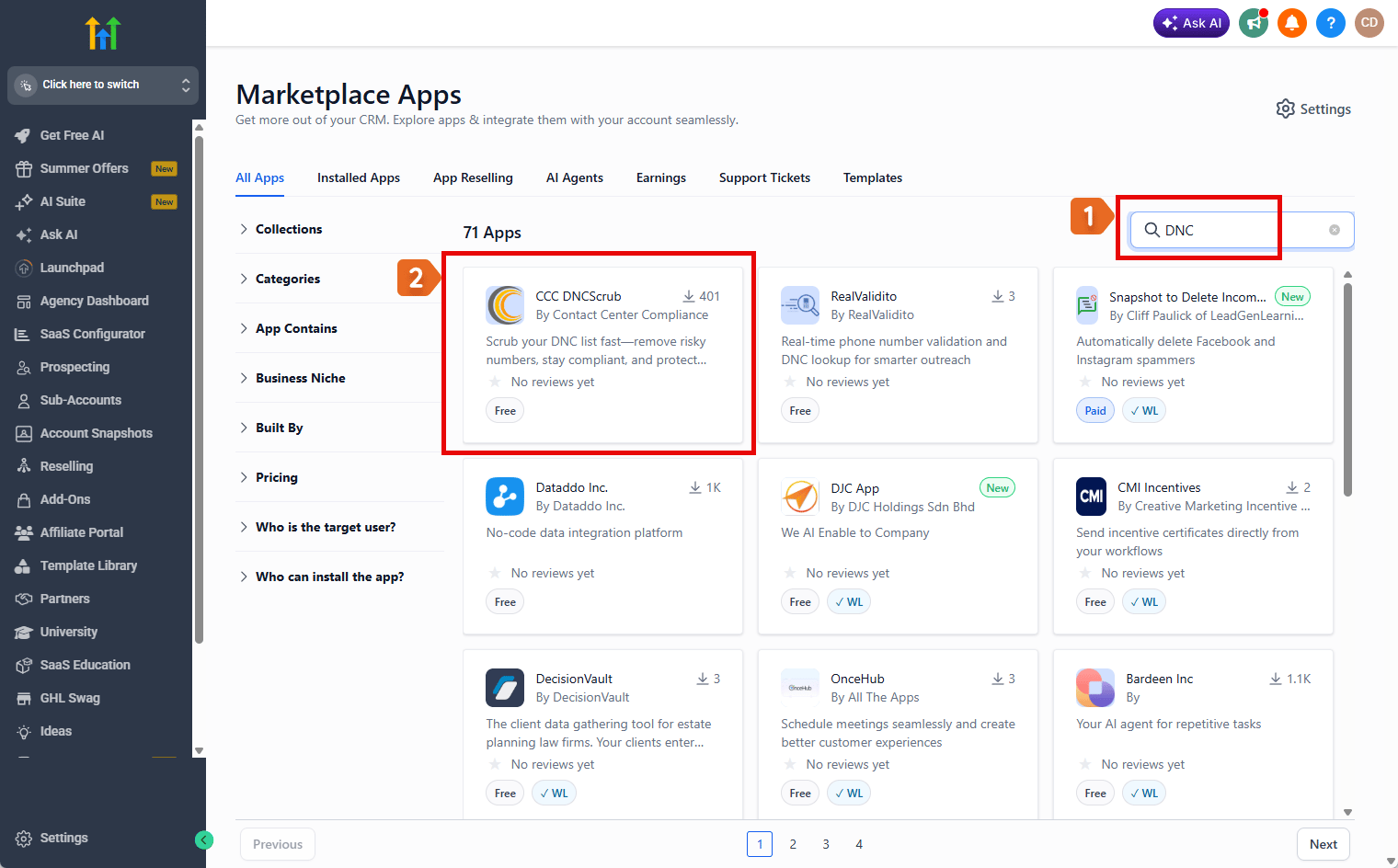
- In the search box (top right), type DNC.
- Select the CCC DNCScrub app by Contact Center Compliance.
2
Install to your agency
On the app page, make sure the view is set to Agency View, then select Install. DNCScrub can only be installed from the agency — not from a sub-account — and you install it once no matter how many sub-accounts you have.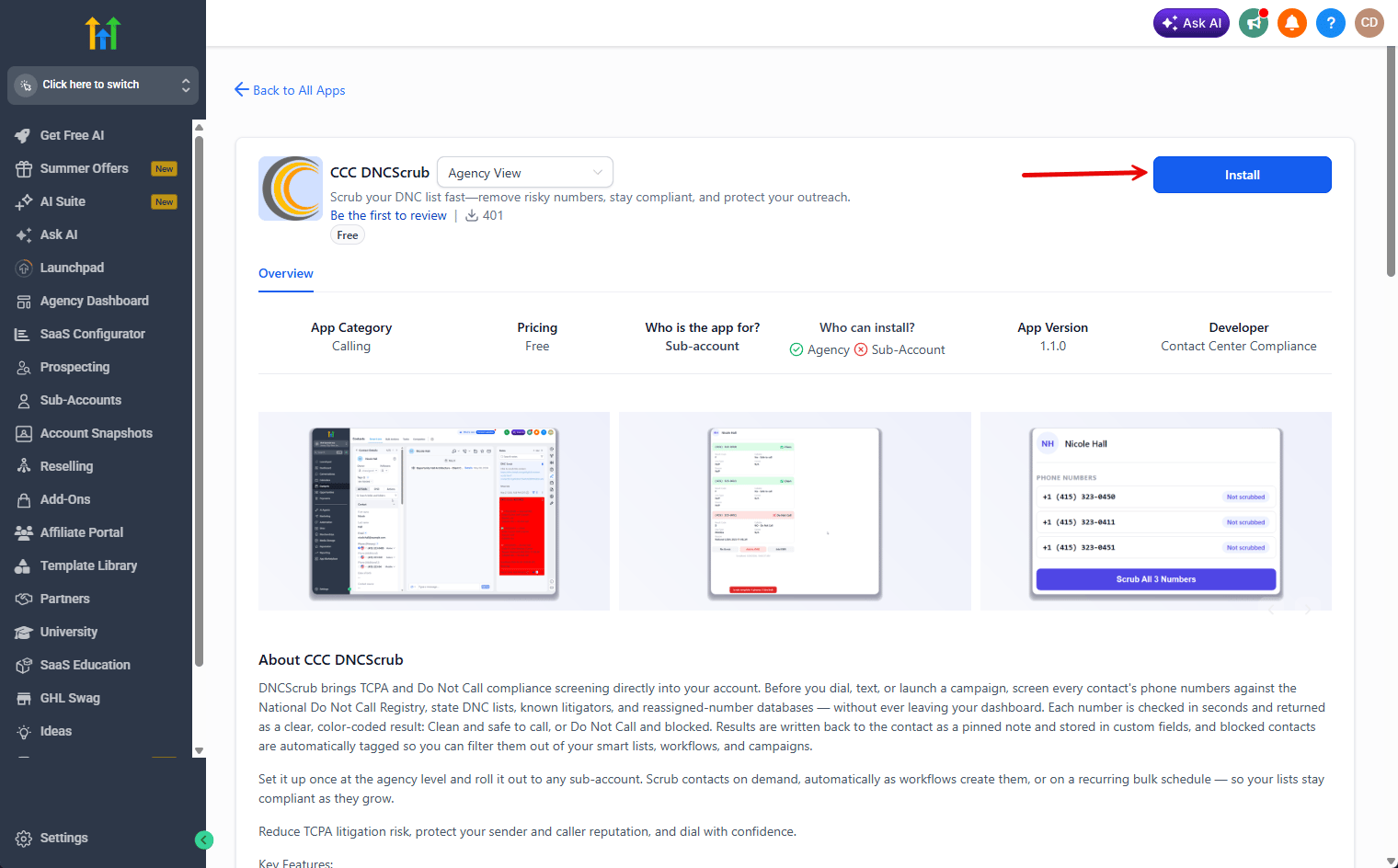
3
Choose your sub-accounts
In the Select Sub-Account window, check the sub-accounts (locations) where you want to use DNCScrub, then select Continue. You can enable more sub-accounts later, so it is fine to start with just the ones you need.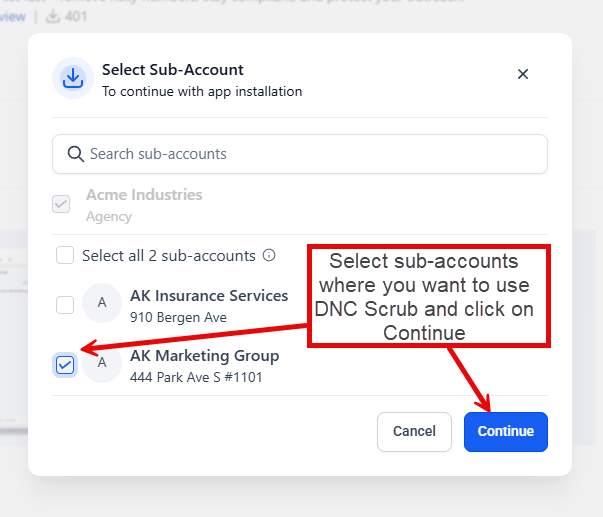
4
Authorize access
On the Install confirmation page, review the selected location and the permissions the app requests, then select Allow & Install to finish installing DNCScrub.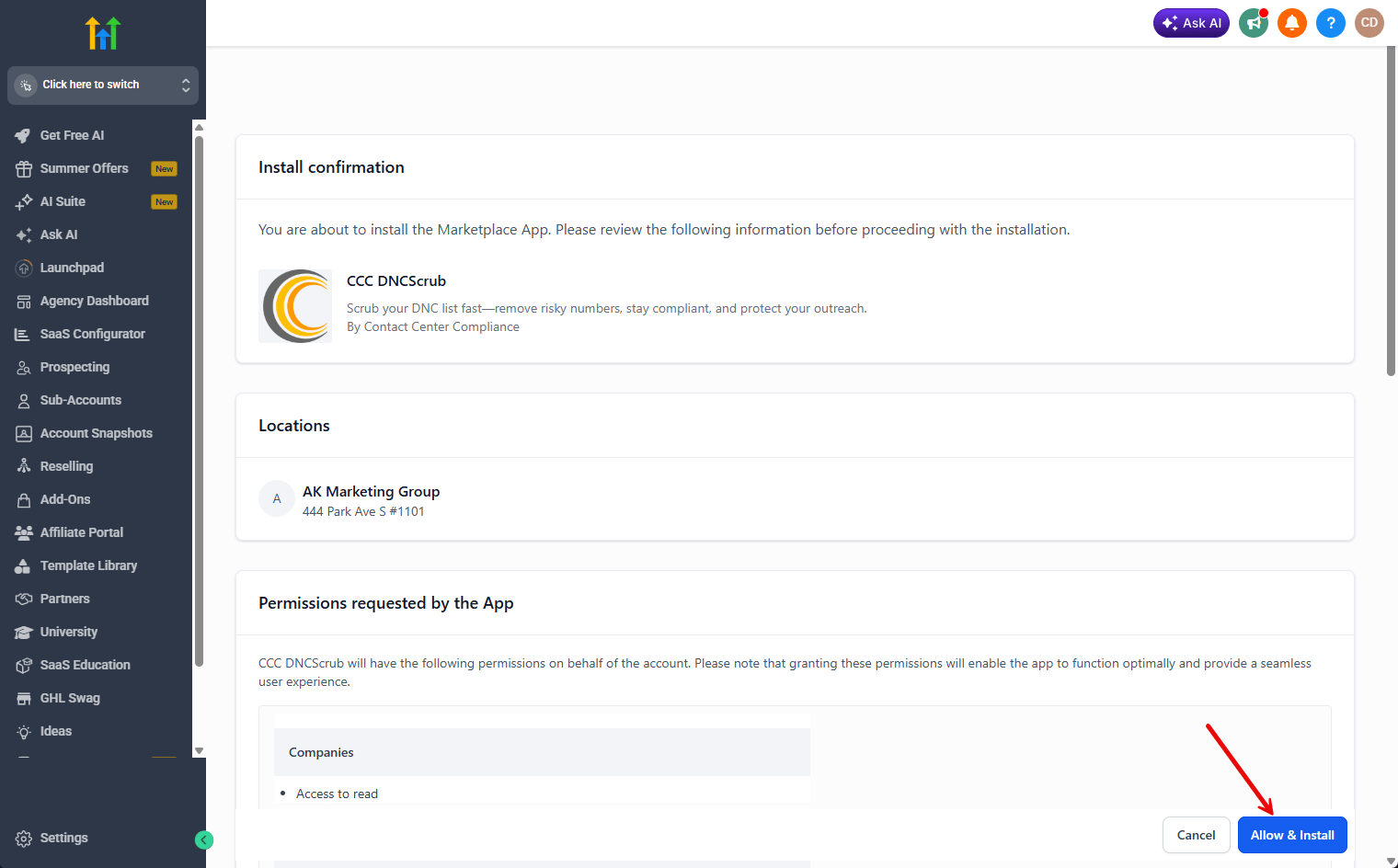
5
Confirm the connection
Once installation is complete, a new tab opens confirming Connected Successfully — your GoHighLevel account is now connected to DNC Scrub. Select Close This Tab and return to GoHighLevel.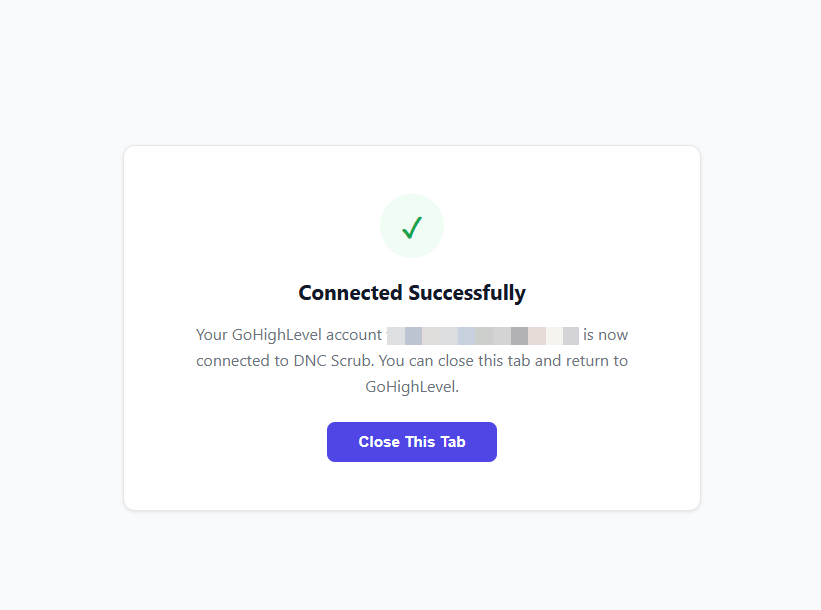
After installing, GoHighLevel may drop you into a sub-account. To finish setup, switch to Agency View — the DNCScrub Settings page lives there.
Set Up Your Agency
Your GoHighLevel connection is created automatically when you install the app. Next, add your DNCScrub API credentials at the agency level so scrubbing works across all of your sub-accounts.1
Open DNCScrub Settings
In your GoHighLevel agency, select DNCScrub Settings in the left sidebar.
2
Enter your API credentials
On the Agency tab, under DNC Scrub API Credentials, enter your DNC Scrub Login ID (API Key). You can also add a DNC Scrub Campaign ID — if you leave it blank, your default campaign is used.These agency credentials apply to every sub-account by default.
3
Save, then test
Select Save Agency Settings, then Test DNC Connection. A green DNC Scrub API: Connected message confirms your credentials work.
4
Confirm both connections are green
In the Connection panel at the bottom-right of the screen, you should see two green indicators — GoHighLevel and DNC Scrub API. Two green lights mean you are fully connected and ready to scrub.
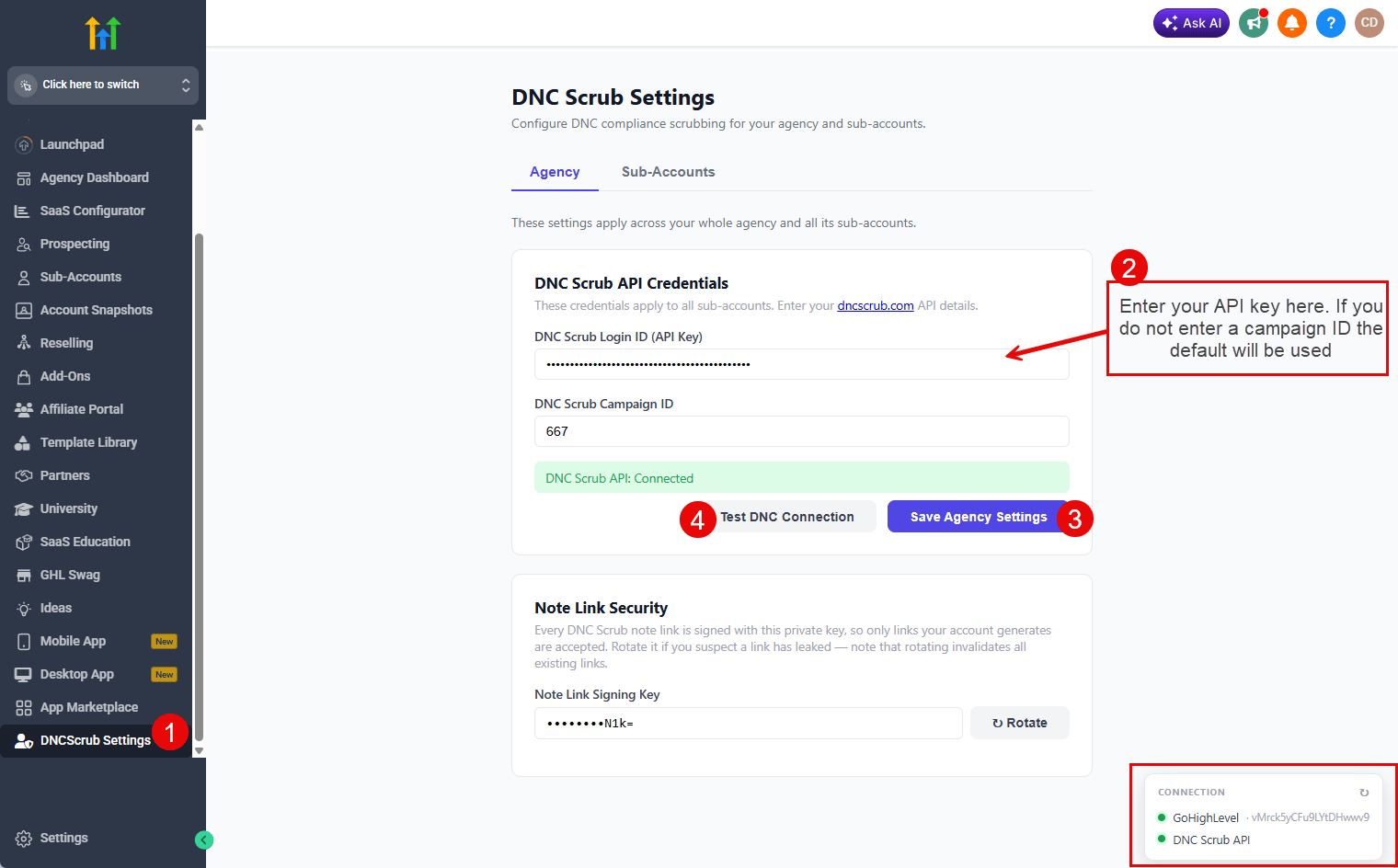
Agency credentials are shared by all sub-accounts. You can override them for an individual sub-account in the next step.
Configure a Sub-Account
Switch to the Sub-Accounts tab and choose a sub-account (location) from the dropdown to configure it on its own. Repeat these steps for each sub-account you want to protect.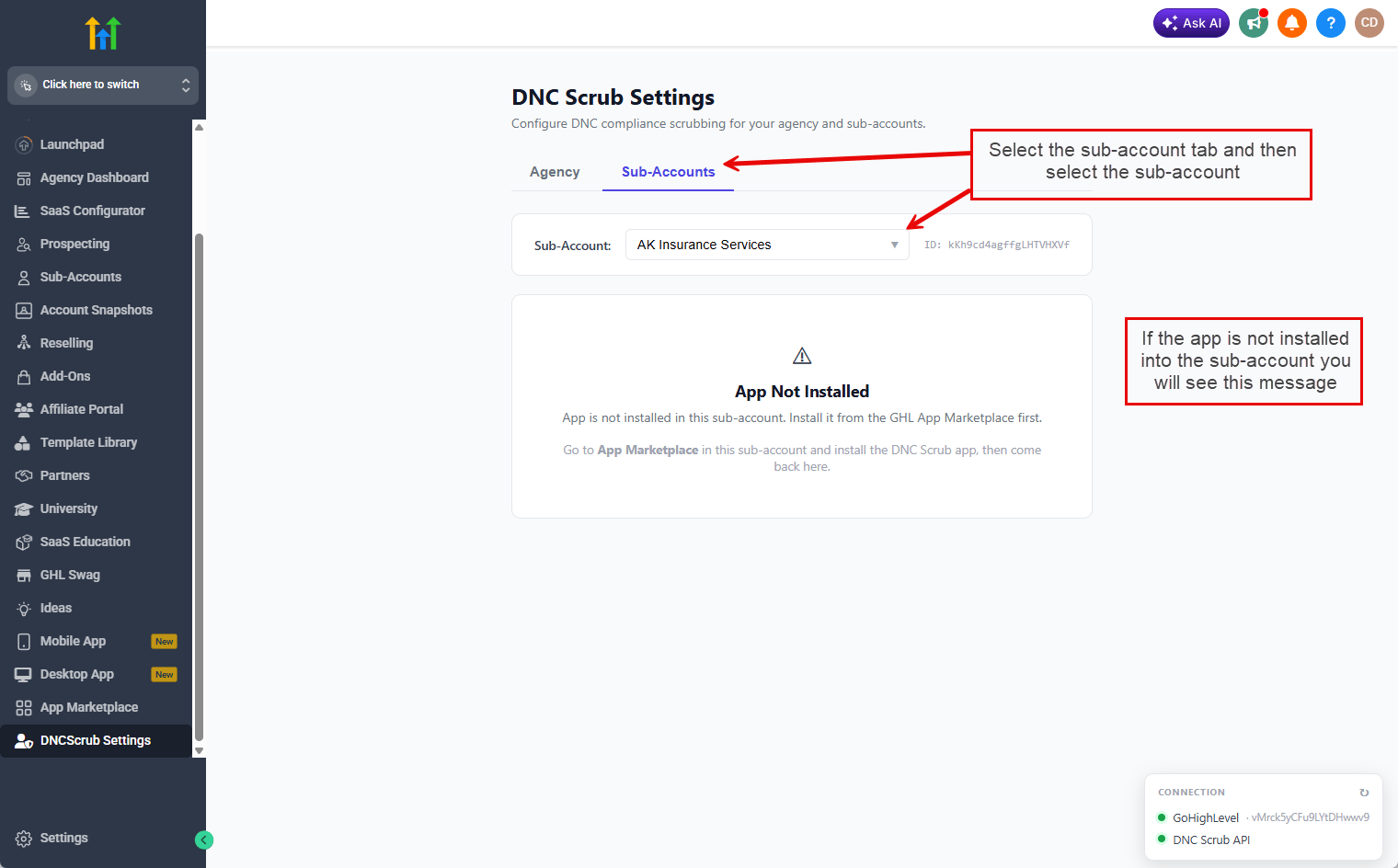
Credential override
Use DNC Credentials Override to point a single sub-account at a different DNCScrub Login ID or Campaign ID. Leave these fields blank to inherit the agency defaults.Scrub behavior
The Scrub Behavior section controls when and how contacts are scrubbed for the selected sub-account: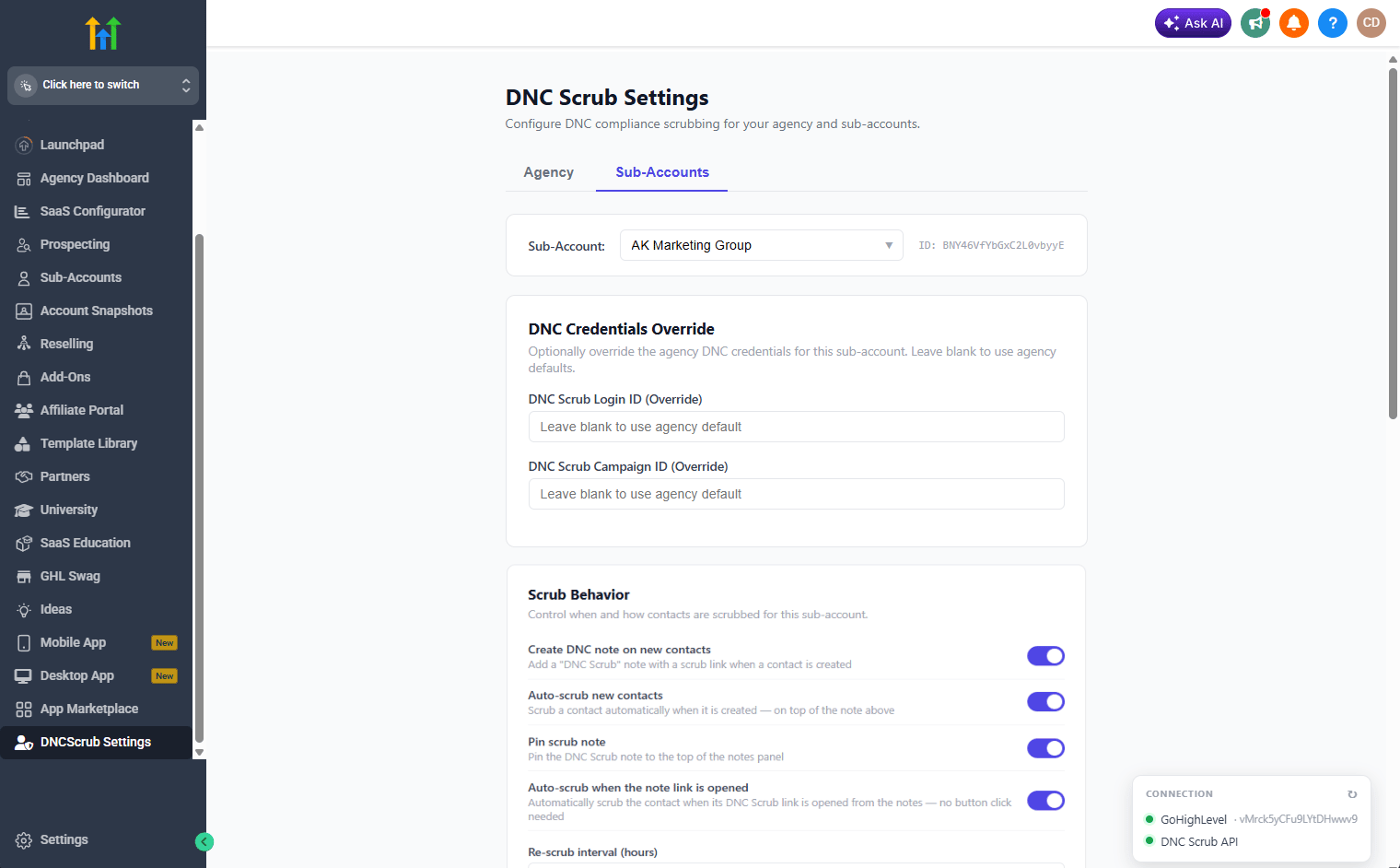
Note appearance
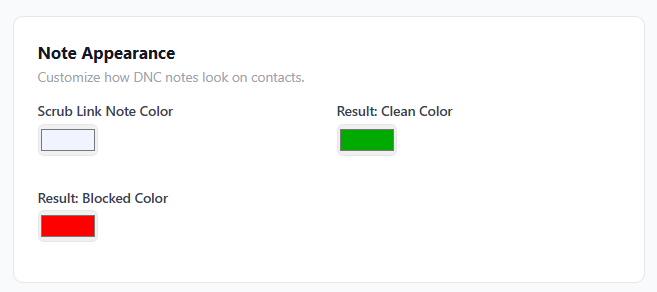
Under Note Appearance, set the colors DNC Scrub uses for the notes it adds to contacts:- Scrub Link Note Color — the pinned note that holds the scrub link
- Result: Clean Color — the result note when a number is safe to call
- Result: Blocked Color — the result note when a number is blocked
Contact tags
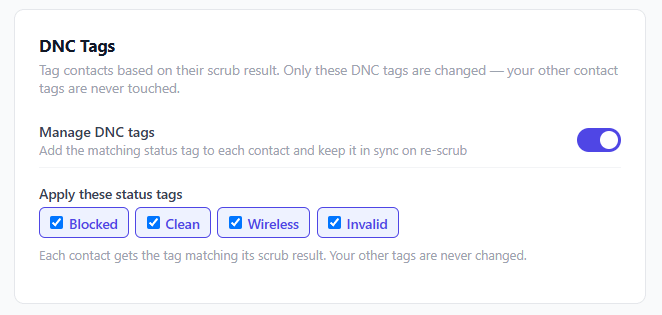
Turn on Manage DNC tags to have DNC Scrub tag each contact with its scrub result. The tag is kept in sync on every re-scrub, so a contact always carries the tag that matches its latest result — handy for building smart lists and triggering workflows. Choose which tags to apply under Apply these status tags. Each scrub result maps to a single status tag:
A contact only ever carries one of these status tags at a time. When a re-scrub changes the result, DNC Scrub removes the old status tag and adds the new one.
DNC Scrub only ever changes the DNC status tags you enable here. Any other tags on the contact — yours or from other apps — are never touched.
Bulk scrub schedule
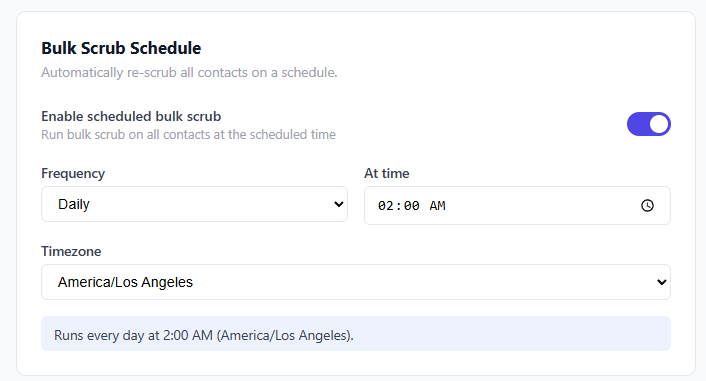
Turn on Enable scheduled bulk scrub to automatically re-scrub all contacts on a recurring schedule, then set:- Frequency — Daily, Weekly, Monthly, or Every… for a set number of days or months between runs (new sub-accounts default to Monthly)
- At time — the time of day the scrub runs
- On these days (Weekly), On day of month (Monthly), or Run every N days/months (Every…)
- Timezone — the schedule runs in the timezone you choose
Select Save Sub-Account Settings at the bottom of the page to apply the credential, scrub-behavior, note-appearance, and schedule settings above.
Onboard the Sub-Account
Run the Onboarding actions once when you first set up DNC Scrub for a sub-account. These run as soon as you click them — they are separate from the Save Sub-Account Settings button above.- Create Custom Fields — creates the DNC custom fields used to store scrub results on contacts.
- Create Onboarding Notes — adds a pinned DNC Scrub note with a scrub link to every existing contact.
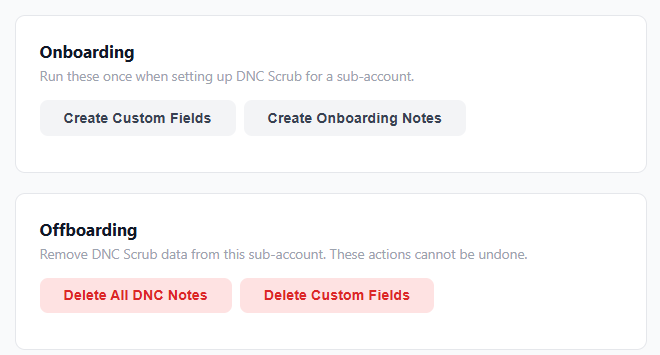
The Offboarding actions shown in the same area remove DNC Scrub from the sub-account — see Offboarding.
Scrubbing a Contact
Once a sub-account is onboarded, each contact gets a pinned DNC Scrub note containing a link to the scrub page.1
Open the scrub link
On the contact, open the pinned DNC Scrub note and select the scrub link.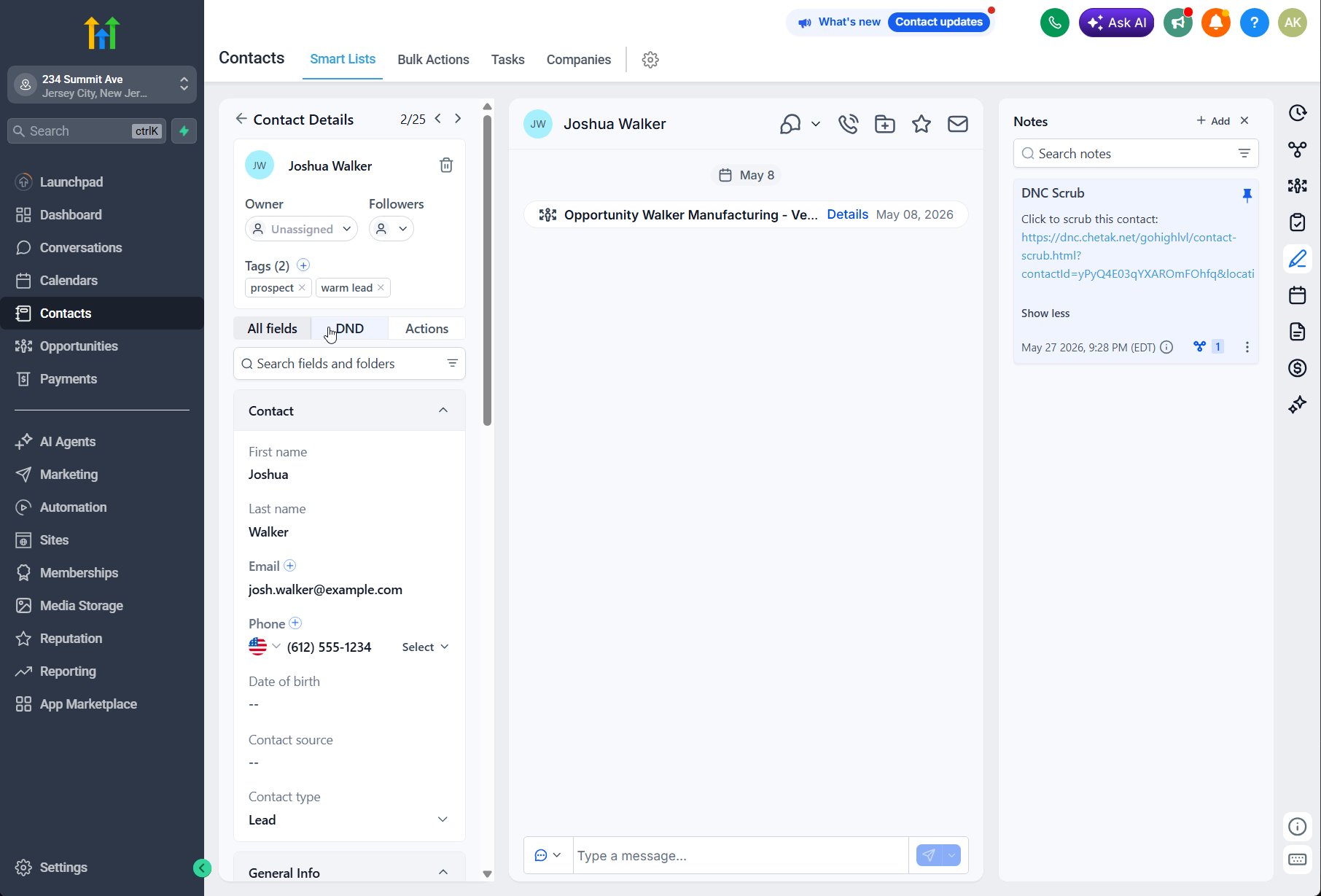
2
Scrub the numbers
The scrub page lists every phone number on the contact. Select Scrub All Numbers to screen them against DNCScrub.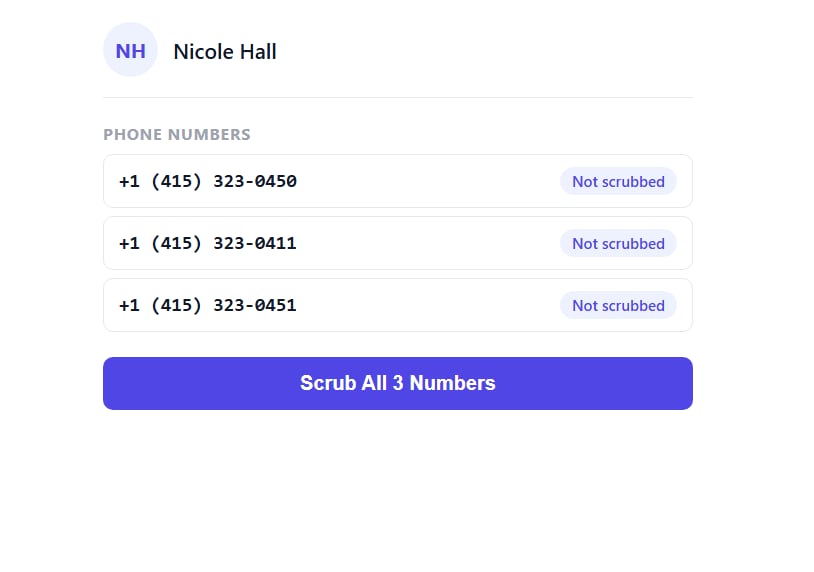
3
Review the results
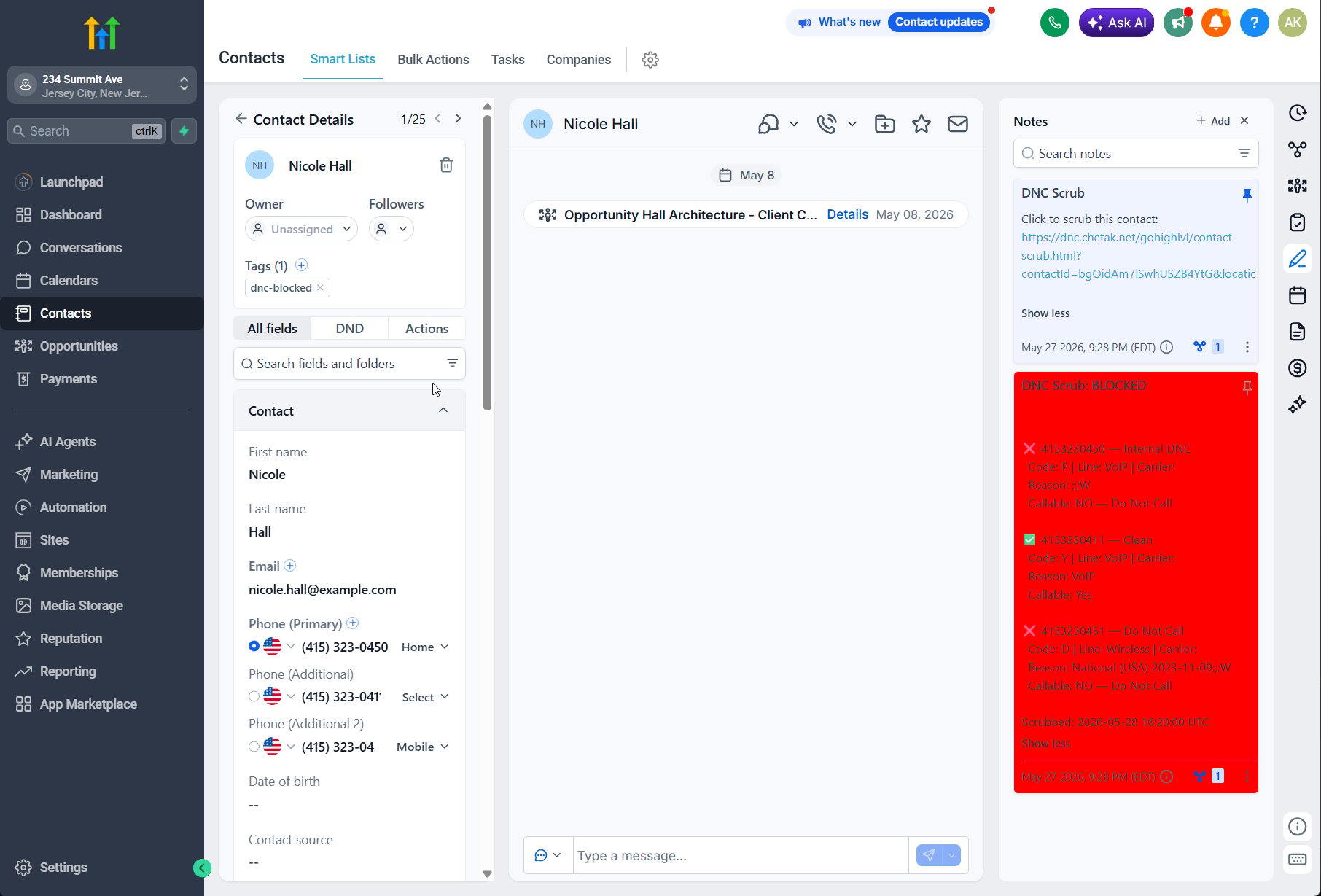
Each number returns a result card — Clean (green) or Do Not Call (red) — along with the result details. A summary banner reports how many numbers were scrubbed and how many were blocked.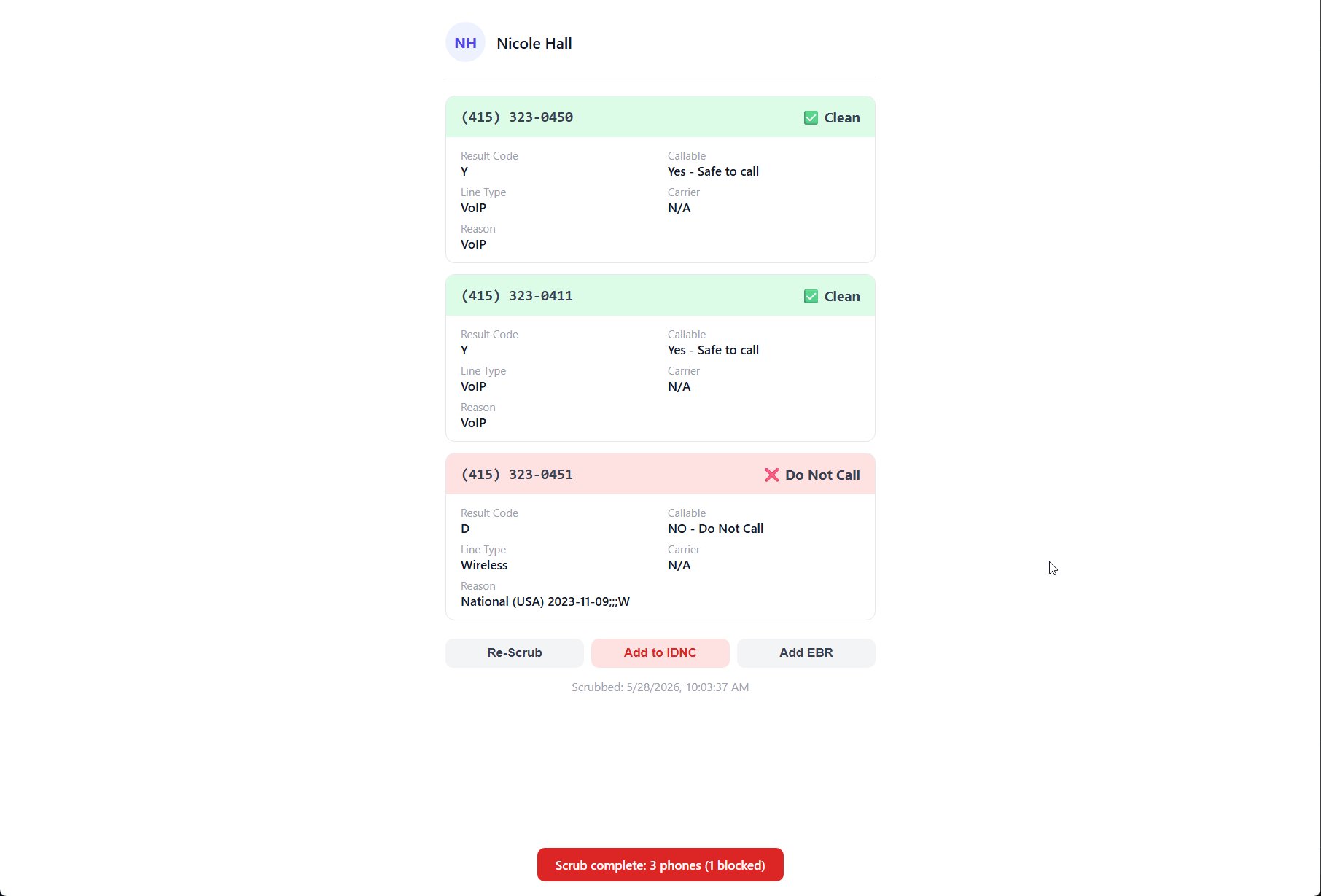
DNC-Blocked) so you can filter it in smart lists and workflows.
Reading a result
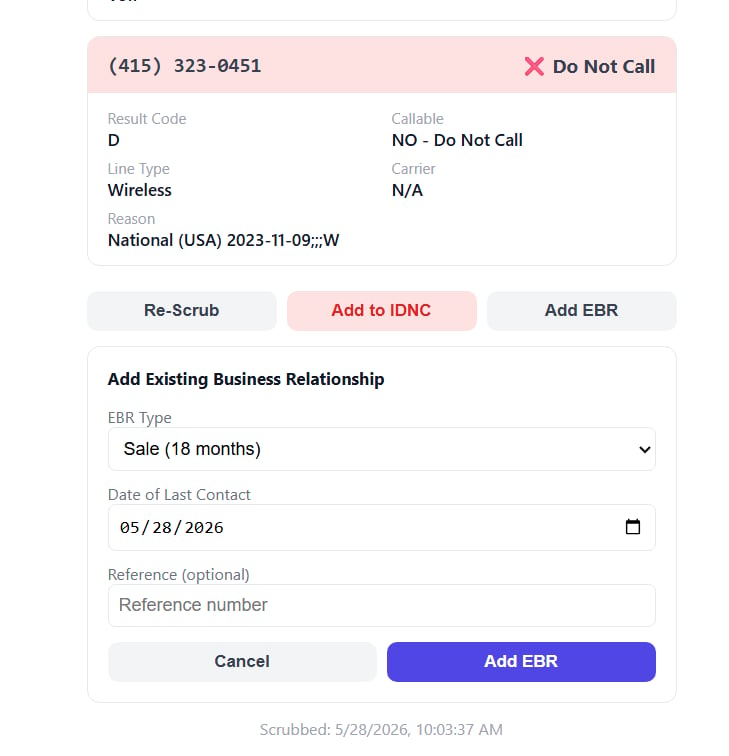
Each phone result card includes:Taking Action on a Result
From the scrub results you can act on a number directly:- Re-Scrub — run the scrub again to refresh the result.
- Add to IDNC — add the number to your Internal Do Not Call list. The contact is also tagged
DNC-Internal. - Add EBR — record an Existing Business Relationship so the number remains callable under that exemption.
- EBR Type — the relationship and its duration, such as Sale (18 months).
- Date of Last Contact — when you last did business with the contact.
- Reference — an optional reference number.
Automated and Bulk Scrubbing
Beyond scrubbing contacts one at a time, you can automate the process:- Enable Auto-scrub new contacts (see Configure a Sub-Account) to scrub contacts as workflows create them.
- Enable Auto-scrub when the note link is opened (see Configure a Sub-Account) to scrub automatically when a rep opens the DNC Scrub link from a contact’s notes.
- Enable the Bulk Scrub Schedule (see Configure a Sub-Account) to re-scrub all contacts on a recurring schedule, skipping any contact scrubbed within the Re-scrub interval.
How results are reused
A scrub result is stored against the phone number itself, not the contact, and reused until the Re-scrub interval expires. That means:- The same number on more than one contact is scrubbed — and charged — once.
- The same number in more than one sub-account is scrubbed once, because results are shared across every sub-account using the same DNC Scrub credentials.
- A scheduled bulk scrub that runs more often than the interval reuses the stored results rather than scrubbing again.
Note Link Security
Every DNC Scrub note link is signed with a private key unique to your agency, so only scrub links your account generates are accepted. You can view and rotate this key under DNC Settings → Note Link Security, where it is shown masked (for example,••••••••abcd).
Rotate the key if you believe a scrub link has been shared outside your team.
1
Rotate the key
Select ↻ Rotate next to the signing key, then confirm. The key is replaced immediately.
2
Recreate the notes
Rotating invalidates every existing scrub link. For each sub-account, run Delete All DNC Notes and then Create Onboarding Notes so contacts receive fresh, valid links.
Offboarding
To remove DNC Scrub data from a sub-account, use the Offboarding actions in DNC Settings:- Delete All DNC Notes
- Delete Custom Fields